2025년 보안 연구원 라클란 데이비슨(Lachlan Davidson)이 메타 측에 제보한 React 프레임워크 취약점이다. 전세계 클라우드 39%에 영향을 미칠 수 있는 강한 파급력으로 Log4j와 같은 등급 CVSS 10.0을 받았다. 핵심 원리는 서버 컴포넌트의 데이터 전송 규약인 RSC 페이로드를 악의적으로 조작해 공격하는 방식이었으며, 해당 페이로드는 서버 측에서 파싱 과정 중 프로토타입 속성을 조작해 공격자 shell 원격 실행이 가능하도록 설정했다. 이는 prototype 상속을 하는 JavaScript 특성을 이용한 것이며, 이러한 현상을 프로토타입 오염(Prototype Pollution)이라고 한다. WAF에 해당 페이로드 타입을 설정하거나 React 19.0 이상으로 패치하여 방지할 수 있다.
In this reading, you’ll review how to navigate the file system using Linux commands in Bash. You’ll further explore the organization of the Linux Filesystem Hierarchy Standard, review several common Linux commands for navigation and reading file content, and learn a couple of new commands.
Filesystem Hierarchy Standard (FHS)
Previously, you learned that the Filesystem Hierarchy Standard(FHS) is the component of Linux that organizes data. The FHS is important because it defines how directories, directory contents, and other storage is organized in the operating system.
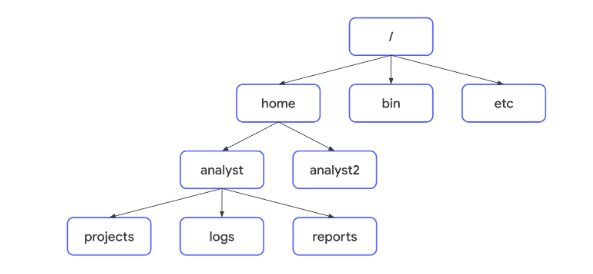
This diagram illustrates the hierarchy of relationships under the FHS:
Under the FHS, a file’s location can be described by a file path. A file path is the location of a file or directory. In the file path, the different levels of the hierarchy are separated by a forward slash (/).
Root directory
The root directory is the highest-level directory in Linux, and it’s always represented with a forward slash (/). All subdirectories branch off the root directory. Subdirectories can continue branching out to as many levels as necessary.
Standard FHS directories
Directly below the root directory, you’ll find standard FHS directories. In the diagram, home, bin, and etc are standard FHS directories. Here are a few examples of what standard directories contain:
/home: Each user in the system gets their own home directory.
/bin: This directory stands for “binary” and contains binary files and other executables. Executables are files that contain a series of commands a computer needs to follow to run programs and perform other functions.
/etc: This directory stores the system’s configuration files.
/tmp: This directory stores many temporary files. The /tmp directory is commonly used by attackers because anyone in the system can modify data in these files.
/mnt: This directory stands for “mount” and stores media, such as USB drives and hard drives.
Pro Tip: You can use the man hier command to learn more about the FHS and its standard directories.
User-specific subdirectories
Under home are subdirectories for specific users. In the diagram, these users are analyst and analyst2. Each user has their own personal subdirectories, such as projects, logs, or reports.
Note: When the path leads to a subdirectory below the user’s home directory, the user’s home directory can be represented as the tilde (~). For example, /home/analyst/logs can also be represented as ~/logs.
You can navigate to specific subdirectories using their absolute or relative file paths. The absolute file path is the full file path, which starts from the root. For example, /home/analyst/projects is an absolute file path. The relative file path is the file path that starts from a user's current directory.
Note: Relative file paths can use a dot (.) to represent the current directory, or two dots (..) to represent the parent of the current directory. An example of a relative file path could be ../projects.
Key commands for navigating the file system
The following Linux commands can be used to navigate the file system: pwd, ls, and cd.
pwd
The pwd command prints the working directory to the screen. Or, in other words, it returns the directory that you’re currently in.
The output gives you the absolute path to this directory. For example, if you’re in your home directory and your username is analyst, entering pwd returns /home/analyst.
Pro Tip: To learn what your username is, use the whoami command. The whoami command returns the username of the current user. For example, if your username is analyst, entering whoami returns analyst.
ls
The ls command displays the names of the files and directories in the current working directory. For example, in the video, ls returned directories such as logs, and a file called updates.txt.
Note: If you want to return the contents of a directory that’s not your current working directory, you can add an argument after ls with the absolute or relative file path to the desired directory. For example, if you’re in the /home/analyst directory but want to list the contents of its projects subdirectory, you can enter ls /home/analyst/projects or just ls projects.
cd
The cd command navigates between directories. When you need to change directories, you should use this command.
To navigate to a subdirectory of the current directory, you can add an argument after cd with the subdirectory name. For example, if you’re in the /home/analyst directory and want to navigate to its projects subdirectory, you can enter cd projects.
You can also navigate to any specific directory by entering the absolute file path. For example, if you’re in /home/analyst/projects, entering cd /home/analyst/logs changes your current directory to /home/analyst/logs.
Pro Tip: You can use the relative file path and enter cd .. to go up one level in the file structure. For example, if the current directory is /home/analyst/projects, entering cd .. would change your working directory to /home/analyst.
Common commands for reading file content
The following Linux commands are useful for reading file content: cat, head, tail, and less.
cat
The cat command displays the content of a file. For example, entering cat updates.txt returns everything in the updates.txt file.
head
The head command displays just the beginning of a file, by default 10 lines. The head command can be useful when you want to know the basic contents of a file but don’t need the full contents. Entering head updates.txt returns only the first 10 lines of the updates.txt file.
Pro Tip: If you want to change the number of lines returned by head, you can specify the number of lines by including -n. For example, if you only want to display the first five lines of the updates.txt file, enter head -n 5 updates.txt.
tail
The tail command does the opposite of head. This command can be used to display just the end of a file, by default 10 lines. Entering tail updates.txt returns only the last 10 lines of the updates.txt file.
Pro Tip: You can use tail to read the most recent information in a log file.
less
The less command returns the content of a file one page at a time. For example, entering less updates.txt changes the terminal window to display the contents of updates.txt one page at a time. This allows you to easily move forward and backward through the content.
Once you’ve accessed your content with the less command, you can use several keyboard controls to move through the file:
Space bar: Move forward one page
b: Move back one page
Down arrow: Move forward one line
Up arrow: Move back one line
q: Quit and return to the previous terminal window
Key takeaways
It’s important for security analysts to be able to navigate Linux and the file system of the FHS. Some key commands for navigating the file system include pwd, ls, and cd. Reading file content is also an important skill in the security profession. This can be done with commands such as cat, head, tail, and less.
Filter content in Linux
In this reading, you’ll continue exploring Linux commands, which can help you filter for the information you need. You’ll learn a new Linux command, find, which can help you search files and directories for specific information.
Filtering for information
You previously explored how filtering for information is an important skill for security analysts. Filtering is selecting data that match a certain condition. For example, if you had a virus in your system that only affected the .txt files, you could use filtering to find these files quickly. Filtering allows you to search based on specific criteria, such as file extension or a string of text.
grep
The grep command searches a specified file and returns all linesin the file containing a specified string or text. The grep command commonly takes two arguments: a specific string to search for and a specific file to search through.
For example, entering grepOSupdates.txt returns all lines containing OS in the updates.txt file. In this example, OS is the specific string to search for, and updates.txt is the specific file to search through.
Let’s look at another example: grep error time_logs.txt. Here grep is used to search for the text pattern. error is the term you are looking for in the time_logs.txt file. When you run this command, grep will scan the time_logs.txt file and print only the lines containing the word error.
Piping
The pipe command is accessed using the pipe character (|). Piping sends the standard output of one command as standard input to another command for further processing. As a reminder, standard output is information returned by the OS through the shell, and standard input is information received by the OS via the command line.
The pipe character (|) is located in various places on a keyboard. On many keyboards, it’s located on the same key as the backslash character (\). On some keyboards, the | can look different and have a small space through the middle of the line. If you can’t find the |, search online for its location on your particular keyboard.
When used with grep, the pipe can help you find directories and files containing a specific word in their names. For example, ls /home/analyst/reports | grep users returns the file and directory names in the reports directory that contain users. Before the pipe, ls indicates to list the names of the files and directories in reports. Then, it sends this output to the command after the pipe. In this case, grep users returns all of the file or directory names containing users from the input it received.
Note: Piping is a general form of redirection in Linux and can be used for multiple tasks other than filtering. You can think of piping as a general tool that you can use whenever you want the output of one command to become the input of another command.
find
The find command searches for directories and files that meet specified criteria. There’s a wide range of criteria that can be specified with find. For example, you can search for files and directories that
Contain a specific string in the name,
Are a certain file size, or
Were last modified within a certain time frame.
When using find, the first argument after find indicates where to start searching. For example, entering find /home/analyst/projects searches for everything starting at the projects directory.
After this first argument, you need to indicate your criteria for the search. If you don’t include a specific search criteria with your second argument, your search will likely return a lot of directories and files.
Specifying criteria involves options. Options modify the behavior of a command and commonly begin with a hyphen (-).
-name and -iname
One key criteria analysts might use with find is to find file or directory names that contain a specific string. The specific string you’re searching for must be entered in quotes after the -name or -iname options. The difference between these two options is that -name is case-sensitive(대소문자 구분하는), and -iname is not.
For example, you might want to find all files in the projects directory that contain the word “log” in the file name. To do this, you’d enter find /home/analyst/projects -name "*log*". You could also enter find /home/analyst/projects -iname "*log*".
In these examples, the output would be all files in the projects directory that contain log surrounded by zero or more characters. The "*log*" portion of the command is the search criteria that indicates to search for the string “log”. When -name is the option, files with names that include Log or LOG, for example, wouldn’t be returned because this option is case-sensitive. However, they would be returned when -iname is the option.
Note: An asterisk (*) is used as a wildcard to represent zero or more unknown characters.
-mtime
Security analysts might also use find to find files or directories last modified within a certain time frame. The -mtime option can be used for this search. For example, entering find /home/analyst/projects -mtime -3 returns all files and directories in the projects directory that have been modified within the past three days.
The -mtime option search is based on days, so entering -mtime +1 indicates all files or directories last modified more than one day ago, and entering -mtime -1 indicates all files or directories last modified less than one day ago.
Note: The option -mmin can be used instead of -mtime if you want to base the search on minutes rather than days.
Key takeaways
Filtering for information using Linux commands is an important skill for security analysts so that they can customize data to fit their needs. Three key Linux commands for this are grep, piping (|), and find. These commands can be used to navigate and filter for information in the file system.
Manage directories and files
Previously, you explored how to manage the file system using Linux commands. The following commands were introduced: mkdir, rmdir, touch, rm, mv, and cp. In this reading, you’ll review these commands, the nano text editor, and learn another way to write to files.
Creating and modifying directories
mkdir
The mkdir command creates a new directory. Like all of the commands presented in this reading, you can either provide the new directory as the absolute file path, which starts from the root, or as a relative file path, which starts from your current directory.
For example, if you want to create a new directory called network in your /home/analyst/logs directory, you can enter mkdir /home/analyst/logs/network to create this new directory. If you’re already in the /home/analyst/logs directory, you can also create this new directory by entering mkdir network.
Pro Tip: You can use the ls command to confirm the new directory was added.
rmdir
The rmdir command removes, or deletes, a directory. For example, entering rmdir /home/analyst/logs/network would remove this empty directory from the file system.
Note: The rmdir command cannot delete directories with files or subdirectories inside. For example, entering rmdir /home/analyst returns an error message.
Creating and modifying files
touch and rm
The touch command creates a new file. This file won’t have any content inside. If your current directory is /home/analyst/reports, entering touch permissions.txt creates a new file in the reports subdirectory called permissions.txt.
The rm command removes, or deletes, a file. This command should be used carefully because it’s not easy to recover files deleted with rm. To remove the permissions file you just created, enter rm permissions.txt.
Pro Tip: You can verify that permissions.txt was successfully created or removed by entering ls.
mv and cp
You can also use mv and cp when working with files. The mv command moves a file or directory to a new location, and the cp command copies a file or directory into a new location. The first argument after mv or cp is the file or directory you want to move or copy, and the second argument is the location you want to move or copy it to.
To move permissions.txt into the logs subdirectory, enter mv permissions.txt /home/analyst/logs. Moving a file removes the file from its original location. However, copying a file doesn’t remove it from its original location. To copy permissions.txt into the logs subdirectory while also keeping it in its original location, enter cp permissions.txt /home/analyst/logs.
Note: The mv command can also be used to rename files. To rename a file, pass the new name in as the second argument instead of the new location. For example, entering mv permissions.txt perm.txt renames the permissions.txt file to perm.txt.
nano text editor
nano is a command-line file editor that is available by default in many Linux distributions. Many beginners find it easy to use, and it’s widely used in the security profession. You can perform multiple basic tasks in nano, such as creating new files and modifying file contents.
To open an existing file in nano from the directory that contains it, enter nano followed by the file name. For example, entering nano permissions.txt from the /home/analyst/reports directory opens a new nano editing window with the permissions.txt file open for editing. You can also provide the absolute file path to the file if you’re not in the directory that contains it.
You can also create a new file in nano by entering nano followed by a new file name. For example, entering nano authorized_users.txt from the /home/analyst/reports directory creates the authorized_users.txt file within that directory and opens it in a new nano editing window.
Since there isn't an auto-saving feature in nano, it’s important to save your work before exiting. To save a file in nano, use the keyboard shortcut Ctrl + O. You’ll be prompted to confirm the file name before saving. To exit out of nano, use the keyboard shortcut Ctrl + X.
Note: Vim and Emacs are also popular command-line text editors.
Standard output redirection
There’s an additional way you can write to files. Previously, you learned about standard input and standard output. Standard input is information received by the OS via the command line, and standard output is information returned by the OS through the shell.
You’ve also learned about piping. Piping sends the standard output of one command as standard input to another command for further processing. It uses the pipe character (|).
In addition to the pipe (|), you can also use the right angle bracket (>) and double right angle bracket (>>) operators to redirect standard output.
When used with echo, the > and >> operators can be used to send the output of echo to a specified file rather than the screen. The difference between the two is that > overwrites your existing file, and >> adds your content to the end of the existing file instead of overwriting it. The > operator should be used carefully, because it’s not easy to recover overwritten files. (-> 그러니 가능한 >> 를 사용하자...)
When you’re inside the directory containing the permissions.txt file, entering echo "last updated date" >> permissions.txt adds the string “last updated date” to the file contents. Entering echo "time" > permissions.txt after this command overwrites the entire file contents of permissions.txt with the string “time”.
Note: Both the > and >> operators will create a new file if one doesn’t already exist with your specified name.
Key takeaways
Knowing how to manage the file system in Linux is an important skill for security analysts. Useful commands for this include: mkdir, rmdir, touch, rm, mv, and cp. When security analysts need to write to files, they can use the nano text editor, or the > and >> operators.
Responsible use of sudo
Previously, you explored authorization, authentication, and Linux commands with sudo, useradd, and userdel. The sudo command is important for security analysts because it allows users to have elevated permissions without risking the system by running commands as the root user. You’ll continue exploring authorization, authentication, and Linux commands in this reading and learn two more commands that can be used with sudo: usermod and chown.
Responsible use of sudo
To manage authorization and authentication, you need to be a root user, or a user with elevated privileges to modify the system. The root user can also be called the “super user.” You become a root user by logging in as the root user. However, running commands as the root user is not recommended in Linux because it can create security risks if malicious actors compromise that account. It’s also easy to make irreversible mistakes, and the system can’t track who ran a command. For these reasons, rather than logging in as the root user, it’s recommended you use sudo in Linux when you need elevated privileges.
The sudo command temporarily grants elevated permissions to specific users. The name of this command comes from “super user do.” Users must be given access in a configuration file to use sudo. This file is called the “sudoers file.” Although using sudo is preferable to logging in as the root user, it's important to be aware that users with the elevated permissions to use sudo might be more at risk in the event of an attack.
You can compare this to a hotel with a master key. The master key can be used to access any room in the hotel. There are some workers at the hotel who need this key to perform their work. For example, to clean all the rooms, the janitor would scan their ID badge and then use this master key. However, if someone outside the hotel’s network gained access to the janitor’s ID badge and master key, they could access any room in the hotel. In this example, the janitor with the master key represents a user using sudo for elevated privileges. Because of the dangers of sudo, only users who really need to use it should have these permissions.
Additionally, even if you need access to sudo, you should be careful about using it with only the commands you need and nothing more. Running commands with sudo allows users to bypass the typical security controls that are in place to prevent elevated access to an attacker.
Note: Be aware of sudo if copying commands from an online source. It’s important you don’t use sudo accidentally.
Authentication and authorization with sudo
You can use sudo with many authentication and authorization management tasks. As a reminder, authentication is the process of verifying who someone is, and authorization is the concept of granting access to specific resources in a system. Some of the key commands used for these tasks include the following:
useradd
The useradd command adds a user to the system. To add a user with the username of fgarcia with sudo, enter sudo useradd fgarcia. There are additional options you can use with useradd:
-g: Sets the user’s default group, also called their primary group
-G: Adds the user to additional groups, also called supplemental or secondary groups
To use the -g option, the primary group must be specified after -g. For example, entering sudo useradd -g security fgarcia adds fgarcia as a new user and assigns their primary group to be security.
To use the -G option, the supplemental group must be passed into the command after -G. You can add more than one supplemental group at a time with the -G option. Entering sudo useradd -G finance,admin fgarcia adds fgarcia as a new user and adds them to the existing finance and admin groups.
usermod
The usermod command modifies existing user accounts. The same -g and -G options from the useradd command can be used with usermod if a user already exists.
To change the primary group of an existing user, you need the -g option. For example, entering sudo usermod -g executive fgarcia would change fgarcia’s primary group to the executive group.
To add a supplemental group for an existing user, you need the -G option. You also need a -a option, which appends the user to an existing group and is only used with the -G option. For example, entering sudo usermod -a -G marketing fgarcia would add the existing fgarcia user to the supplemental marketing group.
Note: When changing the supplemental group of an existing user, if you don't include the -a option, -G will replace any existing supplemental groups with the groups specified after usermod. Using -a with -G ensures that the new groups are added but existing groups are not replaced.
There are other options you can use with usermod to specify how you want to modify the user, including:
-d: Changes the user’s home directory.
-l: Changes the user’s login name.
-L: Locks the account so the user can’t log in.
The option always goes after the usermod command. For example, to change fgarcia’s home directory to /home/garcia_f, enter sudo usermod -d /home/garcia_f fgarcia. The option -d directly follows the command usermod before the other two needed arguments.
userdel
The userdel command deletes a user from the system. For example, entering sudo userdel fgarcia deletes fgarcia as a user. Be careful before you delete a user using this command.
The userdel command doesn’t delete the files in the user’s home directory unless you use the -r option. Entering sudo userdel -r fgarcia would delete fgarcia as a user and delete all files in their home directory. Before deleting any user files, you should ensure you have backups in case you need them later.
Note: Instead of deleting the user, you could consider deactivating their account with usermod -L. This prevents the user from logging in while still giving you access to their account and associated permissions. For example, if a user left an organization, this option would allow you to identify which files they have ownership over, so you could move this ownership to other users.
chown
The chown command changes ownership of a file or directory. You can use chown to change user or group ownership. To change the user owner of the access.txt file to fgarcia, enter sudo chown fgarcia access.txt. To change the group owner of access.txt to security, enter sudo chown :security access.txt. You must enter a colon (:) before security to designate it as a group name.
Similar to useradd, usermod, and userdel, there are additional options that can be used with chown.
d rwx rw- r--
│ │   │   └─ others 권한
│ │   └──── group 권한
│ └──────── owner 권한
└────────── 파일 타입
Key takeaways
Authentication is the process of a user verifying their identity, and authorization is the process of determining what they have access to. You can use the sudo command to temporarily run commands with elevated privileges to complete authentication and authorization management tasks. Specifically, useradd, userdel,usermod, and chown can be used to manage users and file ownership.
Linux resources
Previously, you were introduced to the Linux community and some resources that exist to help Linux users. Linux has many options available to give users the information they need. This reading will review these resources. When you’re aware of the resources available to you, you can continue to learn Linux independently. You can also discover even more ways that Linux can support your work as a security analyst.
Linux community
Linux has a large online community, and this is a huge resource for Linux users of all levels. You can likely find the answers to your questions with a simple online search. Troubleshooting issues by searching and reading online is an effective way to discover how others approached your issue. It’s also a great way for beginners to learn more about Linux.
The UNIX and Linux Stack Exchange is a trusted resource for troubleshooting Linux issues. The Unix and Linux Stack Exchange is a question and answer website where community members can ask and answer questions about Linux. Community members vote on answers, so the higher quality answers are displayed at the top. Many of the questions are related to specific topics from advanced users, and the topics might help you troubleshoot issues as you continue using Linux.
Integrated Linux support
Linux also has several commands that you can use for support.
man
The man command displays information on other commands and how they work. It’s short for “manual.” To search for information on a command, enter the command after man. For example, entering man chown returns detailed information about chown, including the various options you can use with it. The output of the man command is also called a “man page.”
apropos
The apropos command searches the man page descriptions for a specified string. Man pages can be lengthy and difficult to search through if you’re looking for a specific keyword. To use apropos, enter the keyword after apropos.
You can also include the -a option to search for multiple words. For example, entering apropos -a graph editor outputs man pages that contain both the words “graph" and "editor” in their descriptions.(-> so you don't need to know a specific command.)
whatis
The whatis command displays a description of a command on a single line. For example, entering whatis nano outputs the description of nano. This command is useful when you don't need a detailed description, just a general idea of the command. This might be as a reminder. Or, it might be after you discover a new command through a colleague or online resource and want to know more.
Key takeaways
There are many resources available for troubleshooting issues or getting support for Linux. Linux has a large global community of users who ask and answer questions on online resources, such as the Unix and Linux Stack Exchange. You can also use integrated support commands in Linux, such as man, apropos, and whatis.
Resources for more information
There are many resources available online that can help you learn new Linux concepts, review topics, or ask and answer questions with the global Linux community. The Unix and Linux Stack Exchange is one example, and you can search online to find others.
Glossary terms from module 3
Terms and definitions from Course 4, Module 3
Absolute file path: The full file path, which starts from the root
Argument (Linux): Specific information needed by a command
Authentication: The process of verifying who someone is
Authorization: The concept of granting access to specific resources in a system
Bash: The default shell in most Linux distributions
Command: An instruction telling the computer to do something
File path: The location of a file or directory
Filesystem Hierarchy Standard (FHS): The component of the Linux OS that organizes data
Filtering: Selecting data that match a certain condition
nano: A command-line file editor that is available by default in many Linux distributions
Options: Input that modifies the behavior of a command
Permissions: The type of access granted for a file or directory
Principle of least privilege: The concept of granting only the minimal access and authorization required to complete a task or function
Relative file path: A file path that starts from the user's current directory
Root directory: The highest-level directory in Linux
Root user (or superuser): A user with elevated privileges to modify the system
Standard input: Information received by the OS via the command line
Standard output: Information returned by the OS through the shell
Understanding the Linux architecture is important for a security analyst. When you understand how a system is organized, it makes it easier to understand how it functions. In this reading, you’ll learn more about the individual components in the Linux architecture. A request to complete a task starts with the user and then flows through applications, the shell, the Filesystem Hierarchy Standard, the kernel, and the hardware.
User
The user is the person interacting with a computer. They initiate and manage computer tasks. Linux is a multi-user system, which means that multiple users can use the same resources at the same time.
Applications
An application is a program that performs a specific task. There are many different applications on your computer. Some applications typically come pre-installed on your computer, such as calculators or calendars. Other applications might have to be installed, such as some web browsers or email clients. In Linux, you'll often use a package manager to install applications. A package manager is a tool that helps users install, manage, and remove packages or applications. A package is a piece of software that can be combined with other packages to form an application.
Shell
The shell is the command-line interpreter. Everything entered into the shell is text based. The shell allows users to give commands to the kernel and receive responses from it. You can think of the shell as a translator between you and your computer. The shell translates the commands you enter so that the computer can perform the tasks you want.
Filesystem Hierarchy Standard (FHS)
The Filesystem Hierarchy Standard (FHS) is the component of the Linux OS that organizes data. It specifies the location where data is stored in the operating system.
A directory is a file that organizes where other files are stored. Directories are sometimes called “folders,” and they can contain files or other directories. The FHS defines how directories, directory contents, and other storage is organized so the operating system knows where to find specific data.
Kernel
The kernel is the component of the Linux OS that manages processes and memory. It communicates with the applications to route commands. The Linux kernel is unique to the Linux OS and is critical for allocating resources in the system. The kernel controls all major functions of the hardware, which can help get tasks expedited more efficiently.
Hardware
The hardware is the physical components of a computer. You might be familiar with some hardware components, such as hard drives or CPUs. Hardware is categorized as either peripheral or internal.
Peripheral devices
Peripheral devices are hardware components that are attached and controlled by the computer system. They are not core components needed to run the computer system. Peripheral devices can be added or removed freely. Examples of peripheral devices include monitors, printers, the keyboard, and the mouse.
Internal hardware
Internal hardware are the components required to run the computer. Internal hardware includes a main circuit board and all components attached to it. This main circuit board is also called the motherboard. Internal hardware includes the following:
The Central Processing Unit (CPU) is a computer’s main processor, which is used to perform general computing tasks on a computer. The CPU executes the instructions provided by programs, which enables these programs to run.
Random Access Memory (RAM) is a hardware component used for short-term memory. It’s where data is stored temporarily as you perform tasks on your computer. For example, if you’re writing a report on your computer, the data needed for this is stored in RAM. After you’ve finished writing the report and closed down that program, this data is deleted from RAM. Information in RAM cannot be accessed once the computer has been turned off. The CPU takes the data from RAM to run programs.
The hard drive is a hardware component used for long-term memory. It’s where programs and files are stored for the computer to access later. Information on the hard drive can be accessed even after a computer has been turned off and on again. A computer can have multiple hard drives.
Key takeaways
It’s important for security analysts to understand the Linux architecture and how these components are organized. The components of the Linux architecture are the user, applications, shell, Filesystem Hierarchy Standard, kernel, and hardware. Each of these components is important in how Linux functions.
More Linux distributions
Previously, you were introduced to the different distributions of Linux. This included KALI LINUX ™. (KALI LINUX ™ is a trademark of OffSec.) In addition to KALI LINUX ™, there are multiple other Linux distributions that security analysts should be familiar with. In this reading, you’ll learn about additional Linux distributions.
KALI LINUX ™
KALI LINUX ™ is an open-source distribution of Linux that is widely used in the security industry. This is because KALI LINUX ™, which is Debian-based, is pre-installed with many useful tools for penetration testing and digital forensics. A penetration test is a simulated attack that helps identify vulnerabilities in systems, networks, websites, applications, and processes. Digital forensics is the practice of collecting and analyzing data to determine what has happened after an attack. These are key activities in the security industry.
However, KALI LINUX ™ is not the only Linux distribution that is used in cybersecurity.
Ubuntu
Ubuntu is an open-source, user-friendly distribution that is widely used in security and other industries. It has both a command-line interface (CLI) and a graphical user interface (GUI). Ubuntu is also Debian-derived and includes common applications by default. Users can also download many more applications from a package manager, including security-focused tools. Because of its wide use, Ubuntu has an especially large number of community resources to support users.
Ubuntu is also widely used for cloud computing. As organizations migrate to cloud servers, cybersecurity work may more regularly involve Ubuntu derivatives.
Parrot
Parrot is an open-source distribution that is commonly used for security. Similar to KALI LINUX ™, Parrot comes with pre-installed tools related to penetration testing and digital forensics. Like both KALI LINUX ™ and Ubuntu, it is based on Debian.
Parrot is also considered to be a user-friendly Linux distribution. This is because it has a GUI that many find easy to navigate. This is in addition to Parrot’s CLI.
Red Hat® Enterprise Linux®
Red Hat Enterprise Linux is a subscription-based distribution of Linux built for enterprise use. Red Hat is not free, which is a major difference from the previously mentioned distributions. Because it’s built and supported for enterprise use, Red Hat also offers a dedicated support team for customers to call about issues.
AlmaLinux
AlmaLinux is a community-driven Linux distribution that was created as a stable replacement for CentOS. CentOS was an open-source distribution that is closely related to Red Hat, and its final stable release, CentOS 8, was in December 2021. CentOS used source code published by Red Hat to provide a similar platform. AlmaLinux is designed to be a drop-in replacement for CentOS 8. This ensures that applications and configurations that worked on CentOS will continue to function on AlmaLinux.
Key takeaways
KALI LINUX ™, Ubuntu, Parrot, Red Hat, and CentOS are all widely used Linux distributions. It’s important for security analysts to be aware of these distributions that they might encounter in their career.
Package managers for installing applications
Previously, you learned about Linux distributions and that different distributions derive from different sources, such as Debian or Red Hat Enterprise Linux distribution. You were also introduced to package managers, and learned that Linux applications are commonly distributed through package managers. In this reading, you’ll apply this knowledge to learn more about package managers.
Introduction to package managers
A package is a piece of software that can be combined with other packages to form an application. Some packages may be large enough to form applications on their own.
Packages contain the files necessary for an application to be installed. These files include dependencies, which are supplemental files used to run an application.
Package managers can help resolve any issues with dependencies and perform other management tasks. A package manager is a tool that helps users install, manage, and remove packages or applications. Linux uses multiple package managers.
Note: It’s important to use the most recent version of a package when possible. The most recent version has the most up-to-date bug fixes and security patches. These help keep your system more secure.
Types of package managers
Many commonly used Linux distributions are derived from the same parent distribution. For example, KALI LINUX ™, Ubuntu, and Parrot all come from Debian. CentOS comes from Red Hat.
This knowledge is useful when installing applications because certain package managers work with certain distributions. For example, the Red Hat Package Manager (RPM) can be used for Linux distributions derived from Red Hat, and package managers such as dpkg can be used for Linux distributions derived from Debian.
Different package managers typically use different file extensions. For example, Red Hat Package Manager (RPM) has files which use the .rpm file extension, such as Package-Version-Release_Architecture.rpm. Package managers for Debian-derived Linux distributions, such as dpkg, have files which use the .deb file extension, such as Package_Version-Release_Architecture.deb.
Package management tools
In addition to package managers like RPM and dpkg, there are also package management tools that allow you to easily work with packages through the shell. Package management tools are sometimes utilized instead of package managers because they allow users to more easily perform basic tasks, such as installing a new package. Two notable tools are the Advanced Package Tool (APT) and Yellowdog Updater Modified (YUM).
Advanced Package Tool (APT)
APT is a tool used with Debian-derived distributions. It is run from the command-line interface to manage, search, and install packages.
Yellowdog Updater Modified (YUM)
YUM is a tool used with Red Hat-derived distributions. It is run from the command-line interface to manage, search, and install packages. YUM works with .rpm files.
Key takeaways
A package is a piece of software that can be combined with other packages to form an application. Packages can be managed using a package manager. There are multiple package managers and package management tools for different Linux distributions. Package management tools allow users to easily work with packages through the shell. Debian-derived Linux distributions use package managers like dpkg as well as package management tools like Advanced Package Tool (APT). Red Hat-derived distributions use the Red Hat Package Manager (RPM) or tools like Yellowdog Updater Modified (YUM).
Resources for completing Linux labs
Qwiklabs has updated their terms of services to include an age requirement of 18+ to use the platform, in order to comply with regulations in the US and EU. Learners without access to Qwiklabs are still able to complete the certification and gain the badge by reviewing the Qwiklab instructions, exemplars, and participating in other hands-on activities throughout the certificate. This participation is essential to understanding the certificate’s concepts and preparing learners for graded assessments.
This course features hands-on lab activities where you’ll have the opportunity to practice Linux commands in the terminal. You’ll use a platform called Qwiklabs to complete these labs. In this reading, you’ll learn how to use Qwiklabs.
This reading first provides a section on how to use Qwiklabs, which includes details on how to launch a lab, how to interact within the Qwiklabs environment, and how to end a lab. This is followed by another section on helpful navigation tips and keyboard shortcuts; these may be useful when working in the terminal.
Note: You will not launch Qwiklabs directly from this reading and instead will do this through lab activities and exemplars that you encounter throughout the course.
How to use Qwiklabs
Launching Qwiklabs
When you select a lab, you start from a Coursera page. You will need to click Launch App on that page. After you click Launch App, a new tab will open with a Qwiklabs page that contains instructions for that particular lab.
Start Lab button
On the Qwiklabs page, you must click Start Lab to open a temporary terminal. The instructions for the lab will move to the right side of the screen.
Read the instructions and complete all the tasks in the lab by entering commands in the terminal.
Note: It may take a moment for the terminal to start.
Lab control dialog box
After you click Start Lab, the lab control dialog box opens. It contains the End Lab button, the timer, and the Open Linux Console button.
You can hide or unhide the dialog box by clicking the following icon in the red box:
The timer
The timer starts when the terminal has loaded. The timer keeps track of the amount of time you have left to complete a lab. The timer counts down until it reaches 00:00:00. When it does, your temporary terminal and resources are deleted.
You will have ample time to complete the labs. But, stay focused on completing the tasks to ensure you use your time well.
Open Linux Console button
When you click the button to Open Linux Console, the terminal opens in a new browser window:
Use this feature if you want a full-screen view of the terminal. You can close this window at any time. Closing the window does not end your lab, and you can continue working in the terminal in the original tab.
Check progress
You can check your progress by clicking Check my progress at the end of each task.
If you haven’t yet completed a task, you’ll receive hints on what you must do to complete it.
You can click Check my progress whenever you want to check the completion status of a task or receive a hint.
Using copy/paste commands
The first time you try to use copy or paste keyboard shortcuts (such as CTRL + C), you’ll receive a pop-up requesting permission to use your device’s clipboard: “googlecoursera.qwiklabs.com wants to see text and images copied to the clipboard.” Please click Allow if you would like to be able to use these shortcuts in the Qwiklabs platform. If you choose not to allow Qwiklabs access to your clipboard, you cannot use keyboard shortcuts but you can still complete the lab.
Code block
Certain steps may include a code block. Click the copy button to copy the code provided and then paste it into the terminal.
To paste code or other text content that you have copied from the instructions into the terminal, activate the terminal by clicking anywhere inside it. The terminal is active when the cursor in the terminal changes from a static empty outline to a flashing solid block.
Once the terminal is active, use the keyboard shortcut CTRL + V (hold down the CTRL key and press the V key) to insert the copied text into the terminal at the location of the flashing cursor.
Scrolling
In certain situations, you may want to scroll within the terminal window. To do so, use the scroll wheel on your mouse or the touchpad of your computer.
End Lab button
Finally, click End Lab when you’ve completed the tasks in the lab.
Note: Don't click End Lab until you're finished; you'll lose access to the work you've done throughout the lab.
Tracking progress on Coursera
If you complete a lab but your progress hasn’t been tracked on Coursera, you may need to refresh the page for your progress to be registered. Once you complete the lab and refresh the page, the green check mark should appear.
Helpful navigation tips and keyboard shortcuts
The following contains a list of navigation tips and keyboard shortcuts you may find useful when completing your Linux labs. Your cursor must be in the terminal window to use these navigation tips and keyboard shortcuts.
CTRL + C: Terminates a command that is currently running; from the instructions portion of Qwiklabs, you can use CTRL + C to copy, but within the terminal, it will only terminate a command and if one isn't running, it will display ^C at the prompt
CTRL + V: Pastes text
clear: Clears the terminal screen; this can also be done by entering CTRL + L
CTRL + A: Sets your cursor at the beginning of a command
CTRL + E: Sets your cursor at the end of a command
Left arrow key: Moves left within a command
Right arrow key: Moves right within a command
Up arrowkey: Provides the last command you entered into the command line; can be entered multiple times to go through multiple commands from the command history
Down arrow key: Provides the next command in the command history; must be after using the up arrow key
Tabkey: Provides available suggestions for completing your text
Key takeaways
Knowing how to navigate Qwiklabs will be useful as you complete the labs throughout this course. These labs can help you practice what you’ve learned in an interactive environment.
Different types of shells
Knowing how to work with Linux shells is an important skill for cybersecurity professionals. Shells can be used for many common tasks. Previously, you were introduced to shells and their functions. This reading will review shells and introduce you to different types, including the one that you'll use in this course.
Communicate through a shell
As you explored previously, the shell is the command-line interpreter. You can think of a shell as a translator between you and the computer system. Shells allow you to give commands to the computer and receive responses from it. When you enter a command into a shell, the shell executes many internal processes to interpret your command, send it to the kernel, and return your results.
Types of shells
The many different types of Linux shells include the following:
Bourne-Again Shell (bash)
C Shell (csh)
Korn Shell (ksh)
Enhanced C shell (tcsh)
Z Shell (zsh)
All Linux shells use common Linux commands, but they can differ in other features. For example, ksh and bash use the dollar sign ($) to indicate where users type in their commands. Other shells, such as zsh, use the percent sign (%) for this purpose.
Bash
Bash is the default shell in most Linux distributions. It’s considered a user-friendly shell. You can use bash for basic Linux commands as well as larger projects.
Bash is also the most popular shell in the cybersecurity profession. You’ll use bash throughout this course as you learn and practice Linux commands.
Key takeaways
Shells are a fundamental part of the Linux operating system. Shells allow you to give commands to the computer and receive responses from it. They can be thought of as a translator between you and your computer system. There are many different types of shells, but the bash shell is the most commonly used shell in the cybersecurity profession. You’ll learn how to enter Linux commands through the bash shell later in this course.
Glossary terms from module 2
Terms and definitions from Course 4, Module 2
Application: A program that performs a specific task
Bash: The default shell in most Linux distributions
CentOS: An open-source distribution that is closely related to Red Hat
Central Processing Unit (CPU): A computer’s main processor, which is used to perform general computing tasks on a computer
Command: An instruction telling the computer to do something
Digital forensics: The practice of collecting and analyzing data to determine what has happened after an attack
Directory: A file that organizes where other files are stored
Distributions: The different versions of Linux
File path: The location of a file or directory
Filesystem Hierarchy Standard (FHS): The component of the Linux OS that organizes data
Graphical user interface (GUI): A user interface that uses icons on the screen to manage different tasks on the computer
Hard drive: A hardware component used for long-term memory
Hardware: The physical components of a computer
Internal hardware: The components required to run the computer
Kali Linux ™: An open-source distribution of Linux that is widely used in the security industry
Kernel: The component of the Linux OS that manages processes and memory
Linux: An open source operating system
Package: A piece of software that can be combined with other packages to form an application
Package manager: A tool that helps users install, manage, and remove packages or applications
Parrot: An open-source distribution that is commonly used for security
Penetration test (pen test): A simulated attack that helps identify vulnerabilities in systems, networks, websites, applications, and processes
Peripheral devices: Hardware components that are attached and controlled by the computer system
Random Access Memory (RAM): A hardware component used for short-term memory
Red Hat® Enterprise Linux® (also referred to simply as Red Hat in this course): A subscription-based distribution of Linux built for enterprise use
Shell: The command-line interpreter
Standard error: An error message returned by the OS through the shell
Standard input: Information received by the OS via the command line
Standard output: Information returned by the OS through the shell
String data: Data consisting of an ordered sequence of characters
Ubuntu: An open-source, user-friendly distribution that is widely used in security and other industries
You previously explored why operating systems are an important part of how a computer works. In this reading, you’ll compare some popular operating systems used today. You’ll also focus on the risks of using legacy operating systems.
Common operating systems
The following operating systems are useful to know in the security industry: Windows, macOS®, Linux, ChromeOS, Android, and iOS.
Windows and macOS
Windows and macOS are both common operating systems. The Windows operating system was introduced in 1985, and macOS was introduced in 1984. Both operating systems are used in personal and enterprise computers.
Windows is a closed-source operating system, which means the source code is not shared freely with the public. macOS is partially open source. It has some open-source components, such as macOS’s kernel. macOS also has some closed-source components.
Linux
The first version of Linux was released in 1991, and other major releases followed in the early 1990s. Linux is a completely open-source operating system, which means that anyone can access Linux and its source code. The open-source nature of Linux allows developers in the Linux community to collaborate.
Linux is particularly important to the security industry. There are some distributions that are specifically designed for security. Later in this course, you’ll learn about Linux and its importance to the security industry.
ChromeOS
ChromeOS launched in 2011. It’s partially open source and is derived from Chromium OS, which is completely open source. ChromeOS is frequently used in the education field.
Android and iOS
Android and iOS are both mobile operating systems. Unlike the other operating systems mentioned, mobile operating systems are typically used in mobile devices, such as phones, tablets, and watches. Android was introduced for public use in 2008, and iOS was introduced in 2007. Android is open source, and iOS is partially open source.
Operating systems and vulnerabilities
Security issues are inevitable with all operating systems. An important part of protecting an operating system is keeping the system and all of its components up to date.
Legacy operating systems
A legacy operating system is an operating system that is outdated but still being used. Some organizations continue to use legacy operating systems because software they rely on is not compatible with newer operating systems. This can be more common in industries that use a lot of equipment that requires embedded software—software that’s placed inside components of the equipment.
Legacy operating systems can be vulnerable to security issues because they’re no longer supported or updated. This means that legacy operating systems might be vulnerable to new threats.
Other vulnerabilities
Even when operating systems are kept up to date, they can still become vulnerable to attack. Below are several resources that include information on operating systems and their vulnerabilities.
Keeping an operating system up to date is one key way to help the system stay secure. Because it can be difficult to keep all systems updated at all times, it’s important for security analysts to be knowledgeable about legacy operating systems and the risks they can create.
Key takeaways
Windows, macOS, Linux, ChromeOS, Android, and iOS are all commonly used operating systems. Security analysts should be aware of vulnerabilities that affect operating systems. It’s especially important for security analysts to be familiar with legacy operating systems, which are systems that are outdated but still being used.
Requests to the operating system
Operating systems are a critical component of a computer. They make connections between applications and hardware to allow users to perform tasks. In this reading, you’ll explore this complex process further and consider it using a new analogy and a new example.
Booting the computer
When you boot, or turn on, your computer, either a BIOS or UEFI microchip is activated. The Basic Input/Output System (BIOS) is a microchip that contains loading instructions for the computer and is prevalent in older systems. The Unified Extensible Firmware Interface (UEFI) is a microchip that contains loading instructions for the computer and replaces BIOS on more modern systems.
The BIOS and UEFI chips both perform the same function for booting the computer. BIOS was the standard chip until 2007, when UEFI chips increased in use. Now, most new computers include a UEFI chip. UEFI provides enhanced security features.
The BIOS or UEFI microchips contain a variety of loading instructions for the computer to follow. For example, one of the loading instructions is to verify the health of the computer’s hardware.
The last instruction from the BIOS or UEFI activates the bootloader. The bootloader is a software program that boots the operating system. Once the operating system has finished booting, your computer is ready for use.
Completing a task
As previously discussed, operating systems help us use computers more efficiently. Once a computer has gone through the booting process, completing a task on a computer is a four-part process.
User
The first part of the process is the user. The user initiates the process by having something they want to accomplish on the computer. Right now, you’re a user! You’ve initiated the process of accessing this reading.
Application
The application is the software program that users interact with to complete a task. For example, if you want to calculate something, you would use the calculator application. If you want to write a report, you would use a word processing application. This is the second part of the process.
Operating system
The operating system receives the user’s request from the application. It’s the operating system’s job to interpret the request and direct its flow. In order to complete the task, the operating system sends it on to applicable components of the hardware.
Hardware
The hardware is where all the processing is done to complete the tasks initiated by the user. For example, when a user wants to calculate a number, the CPU figures out the answer. As another example, when a user wants to save a file, another component of the hardware, the hard drive, handles this task.
After the work is done by the hardware, it sends the output back through the operating system to the application so that it can display the results to the user.
The OS at work behind the scenes
Consider once again how a computer is similar to a car. There are processes that someone won’t directly observe when operating a car, but they do feel it move forward when they press the gas pedal. It’s the same with a computer. Important work happens inside a computer that you don’t experience directly. This work involves the operating system.
You can explore this through another analogy. The process of using an operating system is also similar to ordering at a restaurant. At a restaurant you place an order and get your food, but you don’t see what’s happening in the kitchen when the cooks prepare the food.
Ordering food is similar to using an application on a computer. When you order your food, you make a specific request like “a small soup, very hot.” When you use an application, you also make specific requests like “print three double-sided copies of this document.”
You can compare the food you receive to what happens when the hardware sends output. You receive the food that you ordered. You receive the document that you wanted to print.
Finally, the kitchen is like the OS. You don’t know what happens in the kitchen, but it’s critical in interpreting the request and ensuring you receive what you ordered. Similarly, though the work of the OS is not directly transparent to you, it’s critical in completing your tasks.
An example: Downloading a file from an internet browser
Previously, you explored how operating systems, applications, and hardware work together by examining a task involving a calculation. You can expand this understanding by exploring how the OS completes another task, downloading a file from an internet browser:
First, the user decides they want to download a file that they found online, so they click on a download button near the file in the internet browser application.
Then, the internet browser communicates this action to the OS.
The OS sends the request to download the file to the appropriate hardware for processing.
The hardware begins downloading the file, and the OS sends this information to the internet browser application. The internet browser then informs the user when the file has been downloaded.
Key takeaways
Although it operates in the background, the operating system is an essential part of the process of using a computer. The operating system connects applications and hardware to allow users to complete a task.
Virtualization technology
You've explored a lot about operating systems. One more aspect to consider is that operating systems can run on virtual machines. In this reading, you’ll learn about virtual machines and the general concept of virtualization. You’ll explore how virtual machines work and the benefits of using them.
What is a virtual machine?
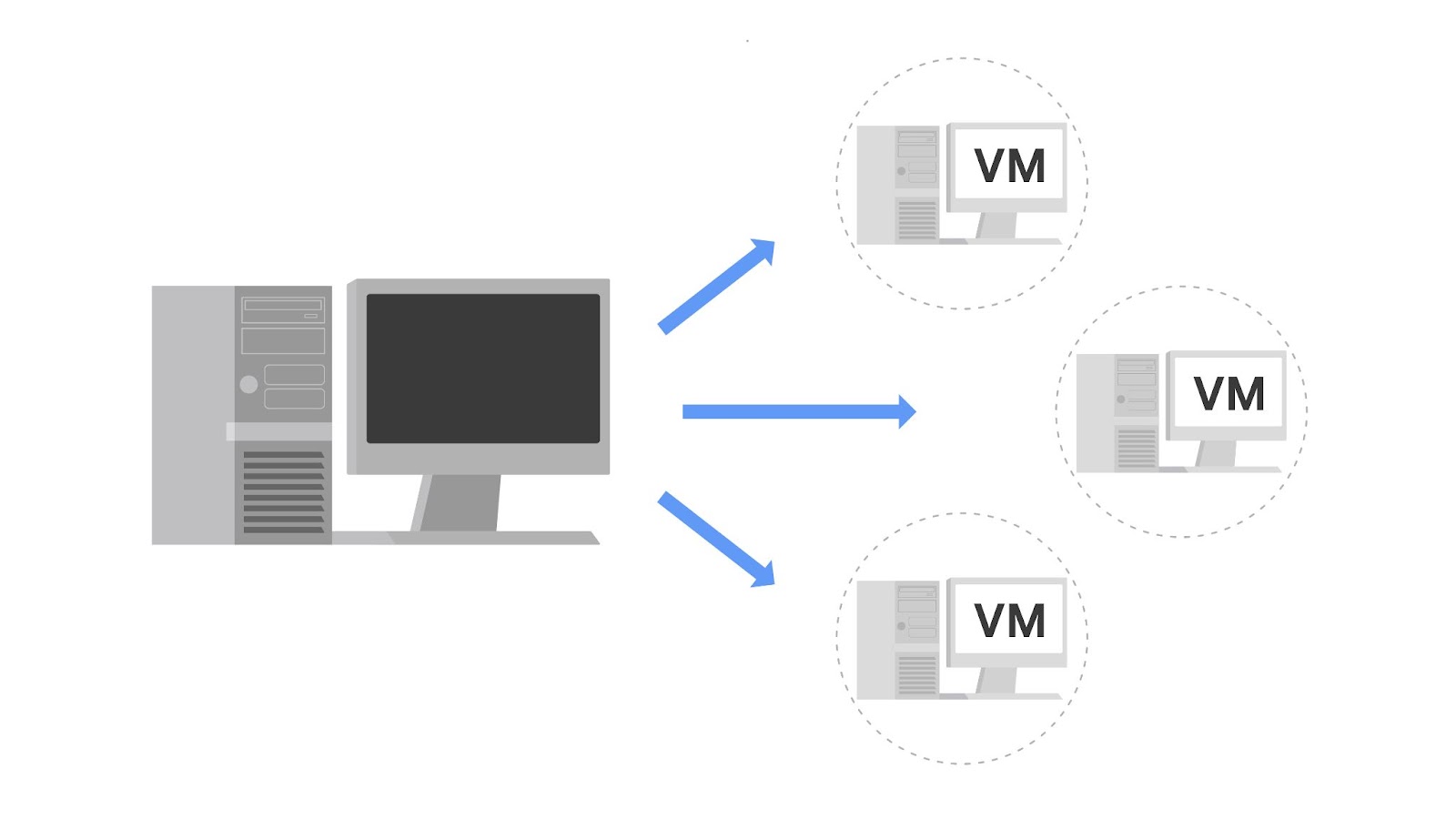
A virtual machine (VM) is a virtual version of a physical computer. Virtual machines are one example of virtualization. Virtualization is the process of using software to create virtual representations of various physical machines. The term “virtual” refers to machines that don’t exist physically, but operate like they do because their software simulates physical hardware. Virtual systems don’t use dedicated physical hardware. Instead, they use software-defined versions of the physical hardware. This means that a single virtual machine has a virtual CPU, virtual storage, and other virtual hardware. Virtual systems are just code.
You can run multiple virtual machines using the physical hardware of a single computer. This involves dividing the resources of the host computer to be shared across all physical and virtual components. For example, Random Access Memory (RAM) is a hardware component used for short-term memory. If a computer has 16GB of RAM, it can host three virtual machines so that the physical computer and virtual machines each have 4GB of RAM. Also, each of these virtual machines would have their own operating system and function similarly to a typical computer.
Benefits of virtual machines
Security professionals commonly use virtualization and virtual machines. Virtualization can increase security for many tasks and can also increase efficiency.
Security
One benefit is that virtualization can provide an isolated environment, or a sandbox, on the physical host machine. When a computer has multiple virtual machines, these virtual machines are “guests” of the computer. Specifically, they are isolated from the host computer and other guest virtual machines. This provides a layer of security, because virtual machines can be kept separate from the other systems. For example, if an individual virtual machine becomes infected with malware, it can be dealt with more securely because it’s isolated from the other machines. A security professional could also intentionally place malware on a virtual machine to examine it in a more secure environment.
Note: Although using virtual machines is useful when investigating potentially infected machines or running malware in a constrained environment, there are still some risks. For example, a malicious program can escape virtualization and access the host machine. This is why you should never completely trust virtualized systems.
Efficiency
Using virtual machines can also be an efficient and convenient way to perform security tasks. You can open multiple virtual machines at once and switch easily between them. This allows you to streamline security tasks, such as testing and exploring various applications.
You can compare the efficiency of a virtual machine to a city bus. A single city bus has a lot of room and is an efficient way to transport many people simultaneously. If city buses didn’t exist, then everyone on the bus would have to drive their own cars. This uses more gas, cars, and other resources than riding the city bus.
Similar to how many people can ride one bus, many virtual machines can be hosted on the same physical machine. That way, separate physical machines aren't needed to perform certain tasks.
Managing virtual machines
Virtual machines can be managed with a software called a hypervisor. Hypervisors help users manage multiple virtual machines and connect the virtual and physical hardware. Hypervisors also help with allocating the shared resources of the physical host machine to one or more virtual machines.
One hypervisor that is useful for you to be familiar with is the Kernel-based Virtual Machine (KVM). KVM is an open-source hypervisor that is supported by most major Linux distributions. It is built into the Linux kernel, which means it can be used to create virtual machines on any machine running a Linux operating system without the need for additional software.
Other forms of virtualization
In addition to virtual machines, there are other forms of virtualization. Some of these virtualization technologies do not use operating systems. For example, multiple virtual servers can be created from a single physical server. Virtual networks can also be created to more efficiently use the hardware of a physical network.
Key takeaways
Virtual machines are virtual versions of physical computers and are one example of virtualization. Virtualization is a key technology in the security industry, and it’s important for security analysts to understand the basics. There are many benefits to using virtual machines, such as isolation of malware and other security risks. However, it’s important to remember there’s still a risk of malicious software escaping their virtualized environments.
Requests to the operating system
Operating systems are a critical component of a computer. They make connections between applications and hardware to allow users to perform tasks. In this reading, you’ll explore this complex process further and consider it using a new analogy and a new example.
Booting the computer
When you boot, or turn on, your computer, either a BIOS or UEFI microchip is activated. The Basic Input/Output System (BIOS) is a microchip that contains loading instructions for the computer and is prevalent in older systems. The Unified Extensible Firmware Interface (UEFI) is a microchip that contains loading instructions for the computer and replaces BIOS on more modern systems.
The BIOS and UEFI chips both perform the same function for booting the computer. BIOS was the standard chip until 2007, when UEFI chips increased in use. Now, most new computers include a UEFI chip. UEFI provides enhanced security features.
The BIOS or UEFI microchips contain a variety of loading instructions for the computer to follow. For example, one of the loading instructions is to verify the health of the computer’s hardware.
The last instruction from the BIOS or UEFI activates the bootloader. The bootloader is a software program that boots the operating system. Once the operating system has finished booting, your computer is ready for use.
Completing a task
As previously discussed, operating systems help us use computers more efficiently. Once a computer has gone through the booting process, completing a task on a computer is a four-part process.
User
The first part of the process is the user. The user initiates the process by having something they want to accomplish on the computer. Right now, you’re a user! You’ve initiated the process of accessing this reading.
Application
The application is the software program that users interact with to complete a task. For example, if you want to calculate something, you would use the calculator application. If you want to write a report, you would use a word processing application. This is the second part of the process.
Operating system
The operating system receives the user’s request from the application. It’s the operating system’s job to interpret the request and direct its flow. In order to complete the task, the operating system sends it on to applicable components of the hardware.
Hardware
The hardware is where all the processing is done to complete the tasks initiated by the user. For example, when a user wants to calculate a number, the CPU figures out the answer. As another example, when a user wants to save a file, another component of the hardware, the hard drive, handles this task.
After the work is done by the hardware, it sends the output back through the operating system to the application so that it can display the results to the user.
The OS at work behind the scenes
Consider once again how a computer is similar to a car. There are processes that someone won’t directly observe when operating a car, but they do feel it move forward when they press the gas pedal. It’s the same with a computer. Important work happens inside a computer that you don’t experience directly. This work involves the operating system.
You can explore this through another analogy. The process of using an operating system is also similar to ordering at a restaurant. At a restaurant you place an order and get your food, but you don’t see what’s happening in the kitchen when the cooks prepare the food.
Ordering food is similar to using an application on a computer. When you order your food, you make a specific request like “a small soup, very hot.” When you use an application, you also make specific requests like “print three double-sided copies of this document.”
You can compare the food you receive to what happens when the hardware sends output. You receive the food that you ordered. You receive the document that you wanted to print.
Finally, the kitchen is like the OS. You don’t know what happens in the kitchen, but it’s critical in interpreting the request and ensuring you receive what you ordered. Similarly, though the work of the OS is not directly transparent to you, it’s critical in completing your tasks.
An example: Downloading a file from an internet browser
Previously, you explored how operating systems, applications, and hardware work together by examining a task involving a calculation. You can expand this understanding by exploring how the OS completes another task, downloading a file from an internet browser:
First, the user decides they want to download a file that they found online, so they click on a download button near the file in the internet browser application.
Then, the internet browser communicates this action to the OS.
The OS sends the request to download the file to the appropriate hardware for processing.
The hardware begins downloading the file, and the OS sends this information to the internet browser application. The internet browser then informs the user when the file has been downloaded.
Key takeaways
Although it operates in the background, the operating system is an essential part of the process of using a computer. The operating system connects applications and hardware to allow users to complete a task.
The command line in use
Previously, you explored graphical user interfaces (GUI) and command-line interfaces (CLI). In this reading, you’ll compare these two interfaces and learn more about how they’re used in cybersecurity.
CLI vs. GUI
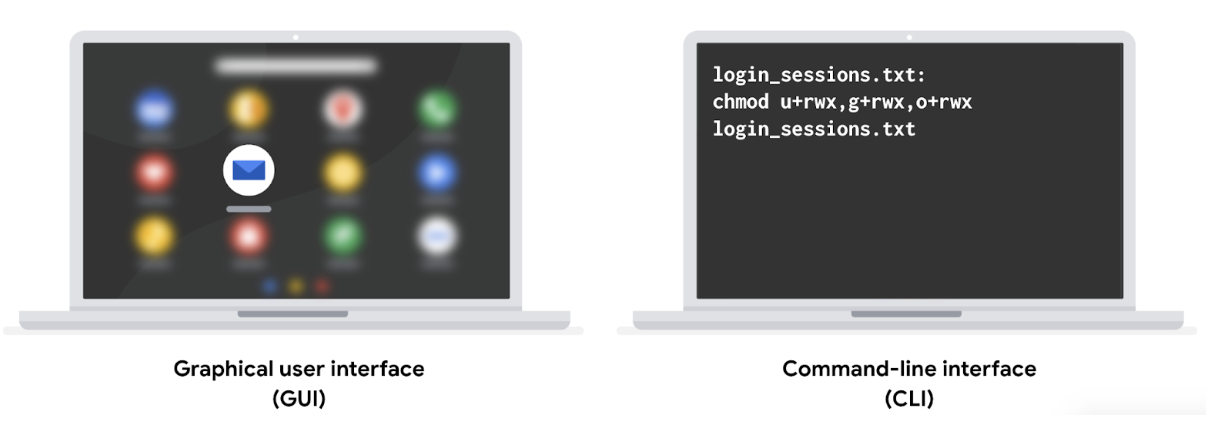
A graphical userinterface (GUI) is a user interface that uses icons on the screen to manage different tasks on the computer. A command-line interface (CLI) is a text-based user interface that uses commands to interact with the computer.
Display
One notable difference between these two interfaces is how they appear on the screen. A GUI has graphics and icons, such as the icons on your desktop or taskbar for launching programs. In contrast, a CLI only has text. It looks similar to lines of code.
Function
These two interfaces also differ in how they function. A GUI is an interface that only allows you to make one request at a time. However, a CLI allows you to make multiple requests at a time.
Advantages of a CLI in cybersecurity
The choice between using a GUI or CLI is partly based on personal preference, but security analysts should be able to use both interfaces. Using a CLI can provide certain advantages.
Efficiency
Some prefer the CLI because it can be used more quickly when you know how to manage this interface. For a new user, a GUI might be more efficient because they’re easier for beginners to navigate.
Because a CLI can accept multiple requests at one time, it’s more powerful when you need to perform multiple tasks efficiently. For example, if you had to create multiple new files in your system, you could quickly perform this task in a CLI. If you were using a GUI, this could take much longer, because you have to repeat the same steps for each new file.
History file
For security analysts, using the Linux CLI is helpful because it records a history file of all the commands and actions in the CLI. If you were using a GUI, your actions are not necessarily saved in a history file.
For example, you might be in a situation where you’re responding to an incident using a playbook. The playbook’s instructions require you to run a series of different commands. If you used a CLI, you’d be able to go back to the history and ensure all of the commands were correctly used. This could be helpful if there were issues using the playbook and you had to review the steps you performed in the command line.
Additionally, if you suspect an attacker has compromised your system, you might be able to trace their actions using the history file.
Key takeaways
GUIs and CLIs are two types of user interfaces that security analysts should be familiar with. There are multiple differences between a GUI and a CLI, including their displays and how they function. When working in cybersecurity, a CLI is often preferred over a GUI because it can handle multiple tasks simultaneously and it includes a history file.
1️⃣ Demonstrating how to change passwords (GUI vs CLI)
A GUI should be used. Because employees have varying levels of technical expertise, a GUI is more intuitive and easier for everyone to follow. It also reflects the method most employees will actually use when changing their passwords in daily work.
2️⃣ Renaming hundreds of log files (GUI vs CLI)
A CLI should be used. Renaming hundreds of files individually using a GUI would be time-consuming and inefficient. A CLI allows bulk file renaming with a single command, reducing errors and significantly improving efficiency.
3️⃣ Installing multiple applications while keeping a command history (GUI vs CLI)
A CLI should be used. The CLI automatically records command history, making it easy to verify which applications were installed and how. It also supports automation and repeatability, which improves accuracy and accountability.
Glossary terms from module 1
Terms and definitions from Course 4, Module 1
Application: A program that performs a specific task
Basic Input/Output System (BIOS): A microchip that contains loading instructions for the computer and is prevalent in older systems
Bootloader: A software program that boots the operating system
Command-line interface (CLI): A text-based user interface that uses commands to interact with the computer
Graphical user interface (GUI): A user interface that uses icons on the screen to manage different tasks on the computer
Hardware: The physical components of a computer
Legacy operating system: An operating system that is outdated but still being used
Operating system (OS): The interface between computer hardware and the user
Random Access Memory (RAM): A hardware component used for short-term memory
Unified Extensible Firmware Interface (UEFI): A microchip that contains loading instructions for the computer and replaces BIOS on more modern systems
User interface: A program that allows the user to control the functions of the operating system
Virtual machine (VM):A virtual version of a physical computer
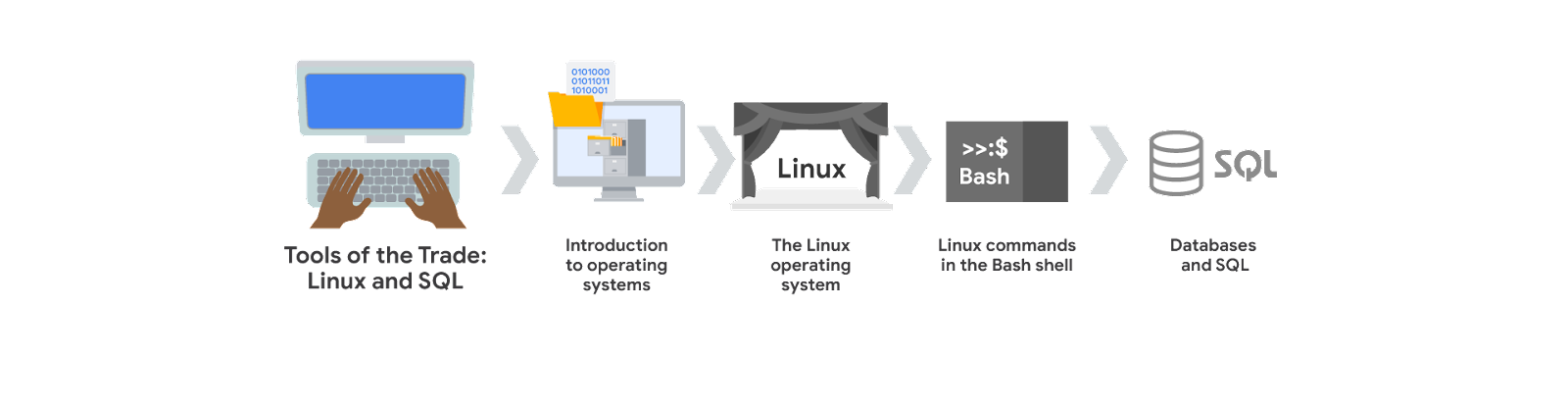
Each course of this certificate program is broken into modules. You can complete courses at your own pace, but the module breakdowns are designed to help you finish the entire Google Cybersecurity Certificate in about six months.
What’s to come? Here’s a quick overview of the skills you’ll learn in each module of this course.
Module 1: Introduction to operating systems
You will learn about the relationship between operating systems, hardware, and software, and become familiar with the primary functions of an operating system. You'll recognize common operating systems in use today and understand how the graphical user interface (GUI) and command-line interface (CLI) both allow users to interact with the operating system.
Module 2: The Linux operating system
You will be introduced to the Linux operating system and learn how it is commonly used in cybersecurity. You’ll also learn about Linux architecture and common Linux distributions. In addition, you'll be introduced to the Linux shell and learn how it allows you to communicate with the operating system.
Module 3: Linux commands in the Bash shell
You will be introduced to Linux commands as entered through the Bash shell. You'll use the Bash shell to navigate and manage the file system and to authorize and authenticate users. You'll also learn where to go for help when working with new Linux commands.
Module 4: Databases and SQL
You will practice using SQL to communicate with databases. You'll learn how to query a database and filter the results. You’ll also learn how SQL can join multiple tables together in a query.
Baseline configuration (baseline image): A documented set of specifications within a system that is used as a basis for future builds, releases, and updates
Hardware: The physical components of a computer
Multi-factor authentication (MFA): A security measure which requires a user to verify their identity in two or more ways to access a system or network
Network log analysis: The process of examining network logs to identify events of interest
Operating system (OS): The interface between computer hardware and the user
Patch update: A software and operating system update that addresses security vulnerabilities within a program or product
Penetration testing (pen test): A simulated attack that helps identify vulnerabilities in systems, networks, websites, applications, and processes
Security hardening: The process of strengthening a system to reduce its vulnerabilities and attack surface
Security information and event management (SIEM): An application that collects and analyzes log data to monitor critical activities for an organization
World-writable file: A file that can be altered by anyone in the world
Brute force attacks and OS hardening
In this reading, you’ll learn about brute force attacks. You’ll consider how vulnerabilities can be assessed using virtual machines and sandboxes, and learn ways to prevent brute force attacks using a combination of authentication measures. Implementing various OS hardening tasks can help prevent brute force attacks. An attacker can use a brute force attack to gain access and compromise a network.
Usernames and passwords are among the most common and important security controls in place today. They are used and enforced on everything that stores or accesses sensitive or private information, like personal phones, computers, and restricted applications within an organization. However, a major issue with relying on login credentials as a critical line of defense is that they’re vulnerable to being stolen and guessed by malicious actors.
Brute force attacks
A brute force attack is a trial-and-error process of discovering private information. There are different types of brute force attacks that malicious actors use to guess passwords, including:
Simple brute force attacks. When attackers try to guess a user's login credentials, it’s considered a simple brute force attack. They might do this by entering any combination of usernames and passwords that they can think of until they find the one that works.
Dictionary attacks use a similar technique. In dictionary attacks, attackers use a list of commonly used passwords and stolen credentials from previous breaches to access a system. These are called “dictionary” attacks because attackers originally used a list of words from the dictionary to guess the passwords, before complex password rules became a common security practice.
Using brute force to access a system can be a tedious and time consuming process, especially when it’s done manually. There are a range of tools attackers use to conduct their attacks.
Assessing vulnerabilities
Before a brute force attack or other cybersecurity incident occurs, companies can run a series of tests on their network or web applications to assess vulnerabilities. Analysts can use virtual machines and sandboxes to test suspicious files, check for vulnerabilities before an event occurs, or to simulate a cybersecurity incident.
Virtual machines (VMs)
Virtual machines (VMs) are software versions of physical computers. VMs provide an additional layer of security for an organization because they can be used to run code in an isolated environment, preventing malicious code from affecting the rest of the computer or system. VMs can also be deleted and replaced by a pristine image after testing malware.
VMs are useful when investigating potentially infected machines or running malware in a constrained environment. Using a VM may prevent damage to your system in the event its tools are used improperly. VMs also give you the ability to revert to a previous state. However, there are still some risks involved with VMs. There’s still a small risk that a malicious program can escape virtualization and access the host machine.
You can test and explore applications easily with VMs, and it’s easy to switch between different VMs from your computer. This can also help in streamlining many security tasks.
Sandbox environments
A sandbox is a type of testing environment that allows you to execute software or programs separate from your network. They are commonly used for testing patches, identifying and addressing bugs, or detecting cybersecurity vulnerabilities. Sandboxes can also be used to evaluate suspicious software, evaluate files containing malicious code, and simulate attack scenarios.
Sandboxes can be stand-alone physical computers that are not connected to a network; however, it is often more time- and cost-effective to use software or cloud-based virtual machines as sandbox environments. Note that some malware authors know how to write code to detect if the malware is executed in a VM or sandbox environment. Attackers can program their malware to behave as harmless software when run inside these types of testing environments.
Prevention measures
Some common measures organizations use to prevent brute force attacks and similar attacks from occurring include:
Salting and hashing: Hashing converts information into a unique value that can then be used to determine its integrity. It is a one-way function, meaning it is impossible to decrypt and obtain the original text. Salting adds random characters to hashed passwords. This increases the length and complexity of hash values, making them more secure.
Multi-factor authentication (MFA) and two-factor authentication (2FA): MFA is a security measure which requires a user to verify their identity in two or more ways to access a system or network. This verification happens using a combination of authentication factors: a username and password, fingerprints, facial recognition, or a one-time password (OTP) sent to a phone number or email. 2FA is similar to MFA, except it uses only two forms of verification.
CAPTCHA and reCAPTCHA: CAPTCHA stands for Completely Automated Public Turing test to tell Computers and Humans Apart. It asks users to complete a simple test that proves they are human. This helps prevent software from trying to brute force a password. reCAPTCHA is a free CAPTCHA service from Google that helps protect websites from bots and malicious software.
Password policies: Organizations use password policies to standardize good password practices throughout the business. Policies can include guidelines on how complex a password should be, how often users need to update passwords, whether passwords can be reused or not, and if there are limits to how many times a user can attempt to log in before their account is suspended.
Key takeaways
Brute force attacks are a trial-and-error process of guessing passwords. Attacks can be launched manually or through software tools. Methods include simple brute force attacks and dictionary attacks. To protect against brute force attacks, cybersecurity analysts can use sandboxes to test suspicious files, check for vulnerabilities, or to simulate real attacks and virtual machines to conduct vulnerability tests. Some common measures to prevent brute force attacks include: hashing and salting, MFA and/or 2FA, CAPTCHA and reCAPTCHA, and password policies.
Network security applications
This section of the course covers the topic of network hardening and monitoring. Each device, tool, or security strategy put in place by security analysts further protects—or hardens—the network until the network owner is satisfied with the level of security. This approach of adding layers of security to a network is referred to as defense in depth.
In this reading, you are going to learn about the role of four devices used to secure a network—firewalls, intrusion detection systems, intrusion prevention systems, and security information and event management tools. Network security professionals have the choice to use any or all of these devices and tools depending on the level of security that they hope to achieve.
This reading will discuss the benefits of layered security. Each tool mentioned is an additional layer of defense that can incrementally harden a network, starting with the minimum level of security (provided by just a firewall), to the highest level of security (provided by combining a firewall, an intrusion detection and prevention device, and security event monitoring).
Take note of where each tool is located on the network. Each tool has its own place in the network’s architecture. Security analysts are required to understand the network topologies shown in the diagrams throughout this reading.
Firewall
So far in this course, you learned about stateless firewalls, stateful firewalls, and next-generation firewalls (NGFWs), and the security advantages of each of them.
Most firewalls are similar in their basic functions. Firewalls allow or block traffic based on a set of rules. As data packets enter a network, the packet header is inspected and allowed or denied based on its port number. NGFWs are also able to inspect packet payloads. Each system should have its own firewall, regardless of the network firewall.
Intrusion Detection System
An intrusion detection system (IDS) is an application that monitors system activity and alerts on possible intrusions. An IDS alerts administrators based on the signature of malicious traffic.
The IDS is configured to detect known attacks. IDS systems often sniff data packets as they move across the network and analyze them for the characteristics of known attacks. Some IDS systems review not only for signatures of known attacks, but also for anomalies that could be the sign of malicious activity. When the IDS discovers an anomaly, it sends an alert to the network administrator who can then investigate further.
The limitations to IDS systems are that they can only scan for known attacks or obvious anomalies. New and sophisticated attacks might not be caught. The other limitation is that the IDS doesn’t actually stop the incoming traffic if it detects something awry. It’s up to the network administrator to catch the malicious activity before it does anything damaging to the network.
When combined with a firewall, an IDS adds another layer of defense. The IDS is placed behind the firewall and before entering the LAN, which allows the IDS to analyze data streams after network traffic that is disallowed by the firewall has been filtered out. This is done to reduce noise in IDS alerts, also referred to as false positives.
Intrusion Prevention System
An intrusion prevention system (IPS) is an application that monitors system activity for intrusive activity and takes action to stop the activity. It offers even more protection than an IDS because it actively stops anomalies when they are detected, unlike the IDS that simply reports the anomaly to a network administrator.
An IPS searches for signatures of known attacks and data anomalies. An IPS reports the anomaly to security analysts and blocks a specific sender or drops network packets that seem suspect.
The IPS (like an IDS) sits behind the firewall in the network architecture. This offers a high level of security because risky data streams are disrupted before they even reach sensitive parts of the network. However, one potential limitation is that it is inline: If it breaks, the connection between the private network and the internet breaks. Another limitation of IPS is the possibility of false positives, which can result in legitimate traffic getting dropped.
Full packet capture devices
Full packet capture devices can be incredibly useful for network administrators and security professionals. These devices allow you to record and analyze all of the data that is transmitted over your network. They also aid in investigating alerts created by an IDS.
Security Information and Event Management
A security information and event management system (SIEM) is an application that collects and analyzes log data to monitor critical activities in an organization. SIEM tools work in real time to report suspicious activity in a centralized dashboard. SIEM tools additionally analyze network log data sourced from IDSs, IPSs, firewalls, VPNs, proxies, and DNS logs. SIEM tools are a way to aggregate security event data so that it all appears in one place for security analysts to analyze. This is referred to as a single pane of glass.
Below, you can review an example of a dashboard from Google Cloud’s SIEM tool, Chronicle. Chronicle is a cloud-native tool designed to retain, analyze, and search data.
Splunk is another common SIEM tool. Splunk offers different SIEM tool options: Splunk Enterprise and Splunk Cloud. Both options include detailed dashboards which help security professionals to review and analyze an organization's data. There are also other similar SIEM tools available, and it's important for security professionals to research the different tools to determine which one is most beneficial to the organization.
A SIEM tool doesn’t replace the expertise of security analysts, or of the network- and system-hardening activities covered in this course, but they’re used in combination with other security methods. Security analysts often work in a Security Operations Center (SOC) where they can monitor the activity across the network. They can then use their expertise and experience to determine how to respond to the information on the dashboard and decide when the events meet the criteria to be escalated to oversight.
Key takeaways
Devices / Tools Advantages Disadvantages
Firewall
A firewall allows or blocks traffic based on a set of rules.
A firewall is only able to filter packets based on information provided in the header of the packets.
Intrusion Detection System (IDS)
An IDS detects and alerts admins about possible intrusions, attacks, and other malicious traffic.
An IDS can only scan for known attacks or obvious anomalies; new and sophisticated attacks might not be caught. It doesn’t actually stop the incoming traffic.
Intrusion Prevention System (IPS)
An IPS monitors system activity for intrusions and anomalies and takes action to stop them.
An IPS is an inline appliance. If it fails, the connection between the private network and the internet breaks. It might detect false positives and block legitimate traffic.
Security Information and Event Management (SIEM)
A SIEM tool collects and analyzes log data from multiple network machines. It aggregates security events for monitoring in a central dashboard.
A SIEM tool only reports on possible security issues. It does not take any actions to stop or prevent suspicious events.
Each of these devices or tools cost money to purchase, install, and maintain. An organization might need to hire additional personnel to monitor the security tools, as in the case of a SIEM. Decision-makers are tasked with selecting the appropriate level of security based on cost and risk to the organization. You will learn more about choosing levels of security later in the course.
Secure the cloud
Earlier in this course, you were introduced to cloud computing. Cloud computing is a model for allowing convenient and on-demand network access to a shared pool of configurable computing resources. These resources can be configured and released with minimal management effort or interaction with the service provider.
Just like any other IT infrastructure, a cloud infrastructure needs to be secured. This reading will address some main security considerations that are unique to the cloud and introduce you to the shared responsibility model used for security in the cloud. Many organizations that use cloud resources and infrastructure express concerns about the privacy of their data and resources. This concern is addressed through cryptography and other additional security measures, which will be discussed later in this course.
Cloud security considerations
Many organizations choose to use cloud services because of the ease of deployment, speed of deployment, cost savings, and scalability of these options. Cloud computing presents unique security challenges that cybersecurity analysts need to be aware of.
Identity access management
Identity access management (IAM) is a collection of processes and technologies that helps organizations manage digital identities in their environment. This service also authorizes how users can use different cloud resources. A common problem that organizations face when using the cloud is the loose configuration of cloud user roles. An improperly configured user role increases risk by allowing unauthorized users to have access to critical cloud operations.
Configuration
The expanding cloud ecosystem introduces significant complexity to network management. Each cloud service necessitates precise configuration to uphold security and compliance standards. This challenge intensifies during cloud migrations, where ensuring accurate configuration for every migrated process is critical. Neglect in this area can expose the network to vulnerabilities. Misconfigured cloud services are a frequent source of security breaches, underscoring the importance of meticulous attention to detail by network administrators and architects during the migration and ongoing management of cloud services.
Attack surface
Cloud service providers (CSPs) offer numerous applications and services for organizations at a low cost.
Every service or application on a network carries its own set of risks and vulnerabilities and increases an organization’s overall attack surface. An increased attack surface must be compensated for with increased security measures.
Cloud networks that utilize many services introduce lots of entry points into an organization’s network. However, if the network is designed correctly, utilizing several services does not introduce more entry points into an organization’s network design. These entry points can be used to introduce malware onto the network and pose other security vulnerabilities. It is important to note that CSPs often defer to more secure options, and have undergone more scrutiny than a traditional on-premises network.
Zero-day attacks
Zero-day attacks are an important security consideration for organizations using cloud or traditional on-premise network solutions. A zero day attack is an exploit that was previously unknown. CSPs are more likely to know about a zero day attack occurring before a traditional IT organization does. CSPs have ways of patching hypervisors and migrating workloads to other virtual machines. These methods ensure the customers are not impacted by the attack. There are also several tools available for patching at the operating system level that organizations can use.
Visibility and tracking
Network administrators have access to every data packet crossing the network with both on-premise and cloud networks. They can sniff and inspect data packets to learn about network performance or to check for possible threats and attacks.
This kind of visibility is also offered in the cloud through flow logs and tools, such as packet mirroring. CSPs take responsibility for security in the cloud, but they do not allow the organizations that use their infrastructure to monitor traffic on the CSP’s servers. Many CSPs offer strong security measures to protect their infrastructure. Still, this situation might be a concern for organizations that are accustomed to having full access to their network and operations. CSPs pay for third-party audits to verify how secure a cloud network is and identify potential vulnerabilities. The audits can help organizations identify whether any vulnerabilities originate from on-premise infrastructure and if there are any compliance lapses from their CSP.
Things change fast in the cloud
CSPs are large organizations that work hard to stay up-to-date with technology advancements. For organizations that are used to being in control of any adjustments made to their network, this can be a potential challenge to keep up with. Cloud service updates can affect security considerations for the organizations using them. For example, connection configurations might need to be changed based on the CSP’s updates.
Organizations that use CSPs usually have to update their IT processes. It is possible for organizations to continue following established best practices for changes, configurations, and other security considerations. However, an organization might have to adopt a different approach in a way that aligns with changes made by the CSP.
Cloud networking offers various options that might appear attractive to a small company—options that they could never afford to build on their own premises. However, it is important to consider that each service adds complexity to the security profile of the organization, and they will need security personnel to monitor all of the cloud services.
Shared responsibility model
A commonly accepted cloud security principle is the shared responsibility model. The shared responsibility model states that the CSP must take responsibility for security involving the cloud infrastructure, including physical data centers, hypervisors, and host operating systems. The company using the cloud service is responsible for the assets and processes that they store or operate in the cloud.
The shared responsibility model ensures that both the CSP and the users agree about where their responsibility for security begins and ends. A problem occurs when organizations assume that the CSP is taking care of security that they have not taken responsibility for. One example of this is cloud applications and configurations. The CSP takes responsibility for securing the cloud, but it is the organization’s responsibility to ensure that services are configured properly according to the security requirements of their organization.
Key takeaways
It is essential to know the security considerations that are unique to the cloud and understanding the shared responsibility model for cloud security. Organizations are responsible for correctly configuring and maintaining best security practices for their cloud services. The shared responsibility model ensures that both the CSP and users agree about what the organization is responsible for and what the CSP is responsible for when securing the cloud infrastructure.
Cryptography and cloud security
Earlier in this course, you were introduced to the concepts of the shared responsibility model and identity and access management (IAM). Similar to on-premise networks, cloud networks also need to be secured through a mixture of security hardening practices and cryptography.
This reading will address common cloud security hardening practices, what to consider when implementing cloud security measures, and the fundamentals of cryptography. Since cloud infrastructure is becoming increasingly common, it’s important to understand how cloud networks operate and how to secure them.
Cloud security hardening
There are various techniques and tools that can be used to secure cloud network infrastructure and resources. Some common cloud security hardening techniques include incorporating IAM, hypervisors, baselining, cryptography, and cryptographic erasure.
Identity access management (IAM)
Identity access management (IAM) is a collection of processes and technologies that helps organizations manage digital identities in their environment. This service also authorizes how users can leverage different cloud resources.
Hypervisors
A hypervisor abstracts the host’s hardware from the operating software environment. There are two types of hypervisors. Type one hypervisors run on the hardware of the host computer. An example of a type one hypervisor is VMware®'s ESXi. Type two hypervisors operate on the software of the host computer. An example of a type two hypervisor is VirtualBox. Cloud service providers (CSPs) commonly use type one hypervisors. CSPs are responsible for managing the hypervisor and other virtualization components. The CSP ensures that cloud resources and cloud environments are available, and it provides regular patches and updates. Vulnerabilities in hypervisors or misconfigurations can lead to virtual machine escapes (VM escapes). A VM escape is an exploit where a malicious actor gains access to the primary hypervisor, potentially the host computer and other VMs. As a CSP customer, you will rarely deal with hypervisors directly.
Baselining
Baselining for cloud networks and operations cover how the cloud environment is configured and set up. A baseline is a fixed reference point. This reference point can be used to compare changes made to a cloud environment. Proper configuration and setup can greatly improve the security and performance of a cloud environment. Examples of establishing a baseline in a cloud environment include: restricting access to the admin portal of the cloud environment, enabling password management, enabling file encryption, and enabling threat detection services for SQL databases.
Cryptography in the cloud
Cryptography can be applied to secure data that is processed and stored in a cloud environment. Cryptography uses encryption and secure key management systems to provide data integrity and confidentiality. Cryptographic encryption is one of the key ways to secure sensitive data and information in the cloud.
Encryption is the process of scrambling information into ciphertext, which is not readable to anyone without the encryption key. Encryption primarily originated from manually encoding messages and information using an algorithm to convert any given letter or number to a new value. Modern encryption relies on the secrecy of a key, rather than the secrecy of an algorithm. Cryptography is an important tool that helps secure cloud networks and data at rest to prevent unauthorized access. You’ll learn more about cryptography in-depth in an upcoming course.
Cryptographic erasure
Cryptographic erasure is a method of erasing the encryption key for the encrypted data. When destroying data in the cloud, more traditional methods of data destruction are not as effective. Crypto-shredding is a newer technique where the cryptographic keys used for decrypting the data are destroyed. This makes the data undecipherable and prevents anyone from decrypting the data. When crypto-shredding, all copies of the key need to be destroyed so no one has any opportunity to access the data in the future.
Key Management
Modern encryption relies on keeping the encryption keys secure. Below are the measures you can take to further protect your data when using cloud applications:
Trusted platform module (TPM). TPM is a computer chip that can securely store passwords, certificates, and encryption keys.
Cloud hardware security module (CloudHSM). CloudHSM is a computing device that provides secure storage for cryptographic keys and processes cryptographic operations, such as encryption and decryption.
Organizations and customers do not have access to the cloud service provider (CSP) directly, but they can request audits and security reports by contacting the CSP. Customers typically do not have access to the specific encryption keys that CSPs use to encrypt the customers’ data. However, almost all CSPs allow customers to provide their own encryption keys, depending on the service the customer is accessing. In turn, the customer is responsible for their encryption keys and ensuring the keys remain confidential. The CSP is limited in how they can help the customer if the customer’s keys are compromised or destroyed. One key benefit of the shared responsibility model is that the customer is not entirely responsible for maintenance of the cryptographic infrastructure. Organizations can assess and monitor the risk involved with allowing the CSP to manage the infrastructure by reviewing a CSPs audit and security controls. For federal contractors, FEDRAMP provides a list of verified CSPs.
Key takeaways
Cloud security hardening is a critical component to consider when assessing the security of various public cloud environments and improving the security within your organization. Identity access management (IAM), correctly configuring a baseline for the cloud environment, securing hypervisors, cryptography, and cryptographic erasure are all methods to use to further secure cloud infrastructure.
In this section of the course, you learned that every network has inherent vulnerabilities and could become the target of a network attack.
Attackers could have varying motivations for attacking your organization’s network. They may have financial, personal, or political motivations, or they may be a disgruntled employee or an activist who disagrees with the company's values and wants to harm an organization’s operations. Malicious actors can target any network. Security analysts must be constantly alert to potential vulnerabilities in their organization’s network and take quick action to mitigate them.
In this reading, you’ll learn about network interception attacks and backdoor attacks, and the possible impacts these attacks could have on an organization.
Network interception attacks
Network interception attacks work by intercepting network traffic and stealing valuable information or interfering with the transmission in some way.
Malicious actors can use hardware or software tools to capture and inspect data in transit. This is referred to as packet sniffing. In addition to seeing information that they are not entitled to, malicious actors can also intercept network traffic and alter it. These attacks can cause damage to an organization’s network by inserting malicious code modifications or altering the message and interrupting network operations. For example, an attacker can intercept a bank transfer and change the account receiving the funds to one that the attacker controls.
Later in this course you will learn more about malicious packet sniffing, and other types of network interception attacks: on-path attacks and replay attacks.
Backdoor attacks
A backdoor attack is another type of attack you will need to be aware of as a security analyst. An organization may have a lot of security measures in place, including cameras, biometric scans and access codes, to ensure employees do not enter and exit unseen. However, an employee might work around the security measures by finding a backdoor to the building that is not as heavily monitored, allowing them to sneak out for the afternoon without being seen.
In cybersecurity, backdoors are weaknesses intentionally left by programmers or system and network administrators that bypass normal access control mechanisms. Backdoors are intended to help programmers conduct troubleshooting or administrative tasks. However, backdoors can also be installed by attackers after they’ve compromised an organization to ensure they have persistent access.
Once the hacker has entered an insecure network through a backdoor, they can cause extensive damage: installing malware, performing a denial of service (DoS) attack, stealing private information or changing other security settings that leaves the system vulnerable to other attacks. A DoS attack is an attack that targets a network or server and floods it with network traffic.
Possible impacts on an organization
As you’ve learned already, network attacks can have a significant negative impact on an organization. Let’s examine some potential consequences.
Financial: When a system is taken offline with a DoS attack or some other tactic, they prevent a company from performing tasks that generate revenue. Depending on the size of an organization, interrupted operations can cost millions of dollars. Reparation costs to rebuild software infrastructure and to pay large sums associated with potential ransomware can be financially difficult. In addition, if a malicious actor gets access to the personal information of the company’s clients or customers, the company may face heavy litigation and settlement costs if customers seek legal recourse.
Reputation: Attacks can also have a negative impact on the reputation of an organization. If it becomes public knowledge that a company has experienced a cyber attack, the public may become concerned about the security practices of the organization. They may stop trusting the company with their personal information and choose a competitor to fulfill their needs.
Public safety: If an attack occurs on a government network, this can potentially impact the safety and welfare of the citizens of a country. In recent years, defense agencies across the globe are investing heavily in combating cyber warfare tactics. If a malicious actor gained access to a power grid, a public water system, or even a military defense communication system, the public could face physical harm due to a network intrusion attack.
Key takeaways
Malicious actors are constantly looking for ways to exploit systems. They learn about new vulnerabilities as they arise and attempt to exploit every vulnerability in a system. Attackers leverage backdoor attack methods and network interception attacks to gain access to sensitive information they can use to exploit an organization or cause serious damage. These types of attacks can impact an organization financially, damage its reputation, and potentially put the public in danger. It is important that security analysts stay educated in order to maintain network safety and reduce the likelihood and impact of these types of attacks. Securing networks has never been more important.
Read tcpdump logs
A network protocol analyzer, sometimes called a packet sniffer or a packet analyzer, is a tool designed to capture and analyze data traffic within a network. They are commonly used as investigative tools to monitor networks and identify suspicious activity. There are a wide variety of network protocol analyzers available, but some of the most common analyzers include:
SolarWinds NetFlow Traffic Analyzer
ManageEngine OpManager
Azure Network Watcher
Wireshark
tcpdump
This reading will focus exclusively on tcpdump, though you can apply what you learn here to many of the other network protocol analyzers you'll use as a cybersecurity analyst to defend against any network intrusions. In an upcoming activity, you’ll review a tcpdump data traffic log and identify a DoS attack to practice these skills.
tcpdump
tcpdump is a command-line network protocol analyzer. It is popular, lightweight–meaning it uses little memory and has a low CPU usage–and uses the open-source libpcap library. tcpdump is text based, meaning all commands in tcpdump are executed in the terminal. It can also be installed on other Unix-based operating systems, such as macOS®. It is preinstalled on many Linux distributions.
tcpdump provides a brief packet analysis and converts key information about network traffic into formats easily read by humans. It prints information about each packet directly into your terminal. tcpdump also displays the source IP address, destination IP addresses, and the port numbers being used in the communications.
Interpreting output
tcpdump prints the output of the command as the sniffed packets in the command line, and optionally to a log file, after a command is executed. The output of a packet capture contains many pieces of important information about the network traffic.
Some information you receive from a packet capture includes:
Timestamp: The output begins with the timestamp, formatted as hours, minutes, seconds, and fractions of a second. 패킷이 캡쳐된 시간. 여기선 20시(저녁 8시)
Source IP: The packet’s origin is provided by its source IP address.
Source port: This port number is where the packet originated.
Destination IP: The destination IP address is where the packet is being transmitted to.
Destination port: This port number is where the packet is being transmitted to.
Note: By default, tcpdump will attempt to resolve host addresses to hostnames. It'll also replace port numbers with commonly associated services that use these ports.
Common uses
tcpdump and other network protocol analyzers are commonly used to capture and view network communications and to collect statistics about the network, such as troubleshooting network performance issues. They can also be used to:
Establish a baseline for network traffic patterns and network utilization metrics.
Detect and identify malicious traffic
Create customized alerts to send the right notifications when network issues or security threats arise.
Locate unauthorized instant messaging (IM), traffic, or wireless access points.
However, attackers can also use network protocol analyzers maliciously to gain information about a specific network. For example, attackers can capture data packets that contain sensitive information, such as account usernames and passwords. As a cybersecurity analyst, It’s important to understand the purpose and uses of network protocol analyzers.
Key takeaways
Network protocol analyzers, like tcpdump, are common tools that can be used to monitor network traffic patterns and investigate suspicious activity. tcpdump is a command-line network protocol analyzer that is compatible with Linux/Unix and macOS®. When you run a tcpdump command, the tool will output packet routing information, like the timestamp, source IP address and port number, and the destination IP address and port number. Unfortunately, attackers can also use network protocol analyzers to capture data packets that contain sensitive information, such as account usernames and passwords.
Real-life DDoS attack
Previously, you were introduced to Denial of Service (DoS) attacks. You also learned that volumetric distributed DoS (DDoS) attacks overwhelm a network by sending unwanted data packets in such large quantities that the servers become unable to service normal users. This can be detrimental to an organization. When systems fail, organizations cannot meet their customers' needs. They often lose money, and in some cases, incur other losses. An organization’s reputation may also suffer if news of a successful DDoS attack reaches consumers, who then question the security of the organization.
In this reading you’ll learn about a 2016 DDoS attack against DNS servers that caused major outages at multiple organizations that have millions of daily users.
A DDoS targeting a widely used DNS server
In previous videos, you learned about the function of a DNS server. As a review, DNS servers translate website domain names into the IP address of the system that contains the information for the website. For instance, if a user were to type in a website URL, a DNS server would translate that into a numeric IP address that directs network traffic to the location of the website’s server.
On the day of the DDoS attack we are studying, many large companies were using a DNS service provider. The service provider was hosting the DNS system for these companies. This meant that when internet users typed in the URL of the website they wanted to access, their devices would be directed to the right place. On October 21, 2016, the service provider was the victim of a DDoS attack.
Leading up to the attack
Before the attack on the service provider, a group of university students created a botnet with the intention to attack various gaming servers and networks. A botnet is a collection of computers infected by malware that are under the control of a single threat actor, known as the “bot-herder." Each computer in the botnet can be remotely controlled to send a data packet to a target system. In a botnet attack, cyber criminals instruct all the bots on the botnet to send data packets to the target system at the same time, resulting in a DDoS attack.
The group of university students posted the code for the botnet online so that it would be accessible to thousands of internet users and authorities wouldn’t be able to trace the botnet back to the students. In doing so, they made it possible for other malicious actors to learn the code to the botnet and control it remotely. This included the cyber criminals who attacked the DNS service provider.
The day of attack
At 7:00 a.m. on the day of the attack, the botnet sent tens of millions of DNS requests to the service provider. This overwhelmed the system and the DNS service shut down. This meant that all of the websites that used the service provider could not be reached. When users tried to access various websites that used the service provider, they were not directed to the website they typed in their browser. Outages for each web service occurred all over North America and Europe.
The service provider’s systems were restored after only two hours of downtime. Although the cyber criminals sent subsequent waves of botnet attacks, the DNS company was prepared and able to mitigate the impact.
Key takeaways
As demonstrated in the above example, DDoS attacks can be very damaging to an organization. As a security analyst, it’s important to acknowledge the seriousness of such an attack so that you’re aware of opportunities to protect the network from them. If your network has important operations distributed across hosts that can be dynamically scaled, then operations can continue if the baseline host infrastructure goes offline. DDoS attacks are damaging, but there are concrete actions that security analysts can take to help protect their organizations. Keep going through this course and you will learn about common mitigation strategies to protect against DDoS attacks.
💡 추가 📡 네트워크 레벨 DoS 공격 유형
1️⃣ SYN Flood 공격 TCP 3-way handshake를 악용한 DoS 공격 정상 연결 과정: 클라이언트 → SYN 서버 → SYN/ACK (포트 대기 상태) 클라이언트 → ACK → 연결 성립 공격 방식: SYN 패킷만 대량 전송 서버는 ACK를 기다리며 포트를 계속 점유 포트가 고갈되면 정상 연결 불가
2️⃣ ICMP Flood 공격 ICMP (Internet Control Message Protocol): 네트워크 오류나 상태를 알리는 프로토콜 공격 방식: ICMP 요청을 반복적으로 전송 서버는 계속 응답을 보내야 하므로 네트워크 대역폭 소진 → 서버 다운
3️⃣ Ping of Death 비정상적으로 큰 ICMP 패킷을 이용한 공격 정상 ICMP 최대 크기: 64KB 공격 방식: 64KB를 초과하는 ICMP 패킷 전송 취약한 시스템은 이를 처리하지 못하고 충돌 특징: 다량의 요청이 아닌 단 하나의 치명적인 요청으로도 공격 가능
🧠 핵심 정리 DoS/DDoS는 가용성(Availability) 을 직접적으로 공격 공격 방식은: 많은 요청(SYN/ICMP Flood) 또는 하나의 치명적 요청(Ping of Death) 모두 가능 네트워크 프로토콜의 설계 특성이 공격에 악용될 수 있음
Overview of interception tactics
In the previous course items, you learned how packet sniffing and IP spoofing are used in network attacks. Because these attacks intercept data packets as they travel across the network, they are called interception attacks.
This reading will introduce you to some specific attacks that use packet sniffing and IP spoofing. You will learn how hackers use these tactics and how security analysts can counter the threat of interception attacks.
A closer review of packet sniffing
As you learned in a previous video, packet sniffing is the practice of capturing and inspecting data packets across a network. On a private network, data packets are directed to the matching destination device on the network.
The device’s Network Interface Card (NIC) is a piece of hardware that connects the device to a network. The NIC reads the data transmission, and if it contains the device’s MAC address, it accepts the packet and sends it to the device to process the information based on the protocol. This occurs in all standard network operations. However, a NIC can be set to promiscuous mode, which means that it accepts all traffic on the network, even the packets that aren’t addressed to the NIC’s device. You’ll learn more about NIC’s later in the program. Malicious actors might use software like Wireshark to capture the data on a private network and store it for later use. They can then use the personal information to their own advantage. Alternatively, they might use the IP and MAC addresses of authorized users of the private network to perform IP spoofing.
A closer review of IP spoofing
After a malicious actor has sniffed packets on the network, they can impersonate the IP and MAC addresses of authorized devices to perform an IP spoofing attack. Firewalls can prevent IP spoofing attacks by configuring it to refuse unauthorized IP packets and suspicious traffic. Next, you’ll examine a few common IP spoofing attacks that are important to be familiar with as a security analyst.
On-path attack
An on-path attack happens when a hacker intercepts the communication between two devices or servers that have a trusted relationship. The transmission between these two trusted network devices could contain valuable information like usernames and passwords that the malicious actor can collect. An on-path attack is sometimes referred to as a meddler-in-the middle attack because the hacker is hiding in the middle of communications between two trusted parties.
Or, it could be that the intercepted transmission contains a DNS system look-up. You’ll recall from an earlier video that a DNS server translates website domain names into IP addresses. If a malicious actor intercepts a transmission containing a DNS lookup, they could spoof the DNS response from the server and redirect a domain name to a different IP address, perhaps one that contains malicious code or other threats. The most important way to protect against an on-path attack is to encrypt your data in transit, e.g. using TLS.
Smurf attack
A smurf attack is a network attack that is performed when an attacker sniffs an authorized user’s IP address and floods it with packets. Once the spoofed packet reaches the broadcast address, it is sent to all of the devices and servers on the network.
In a smurf attack, IP spoofing is combined with another denial of service (DoS) technique to flood the network with unwanted traffic. For example, the spoofed packet could include an Internet Control Message Protocol (ICMP) ping. As you learned earlier, ICMP is used to troubleshoot a network. But if too many ICMP messages are transmitted, the ICMP echo responses overwhelm the servers on the network and they shut down. This creates a denial of service and can bring an organization’s operations to a halt.
An important way to protect against a smurf attack is to use an advanced firewall that can monitor any unusual traffic on the network. Most next generation firewalls (NGFW) include features that detect network anomalies to ensure that oversized broadcasts are detected before they have a chance to bring down the network.
DoS attack
As you’ve learned, once the malicious actor has sniffed the network traffic, they can impersonate an authorized user. A Denial of Service attack is a class of attacks where the attacker prevents the compromised system from performing legitimate activity or responding to legitimate traffic. Unlike IP spoofing, however, the attacker will not receive a response from the targeted host. Everything about the data packet is authorized including the IP address in the header of the packet. In IP spoofing attacks, the malicious actor uses IP packets containing fake IP addresses. The attackers keep sending IP packets containing fake IP addresses until the network server crashes.
Pro Tip: Remember the principle of defense-in-depth. There isn’t one perfect strategy for stopping each kind of attack. You can layer your defense by using multiple strategies. In this case, using industry standard encryption will strengthen your security and help you defend from DoS attacks on more than one level.
Key takeaways
This reading covered several types of common IP spoofing attacks. You learned about how packet sniffing is performed and how gathering information from intercepting data transmissions can give malicious actors opportunities for IP spoofing. Whether it is an on-path attack, IP spoofing attack, or a smurf attack, analysts need to ensure that mitigation strategies are in place to limit the threat and prevent security breaches.
추가 Replay 공격
공격자가 전송 중인 패킷을 가로채 재전송하는 공격 방식: 패킷을 **지연(delay)**시켜 연결 오류 유발 정상 사용자가 보낸 요청을 나중에 다시 전송 목적: 정상 사용자로 위장 인증·권한을 재사용하여 접근
Glossary terms from module 3
Terms and definitions from Course 3, Module 3
Active packet sniffing: A type of attack where data packets are manipulated in transit
Botnet: A collection of computers infected by malware that are under the control of a single threat actor, known as the “bot-herder"
Denial of service (DoS) attack: An attack that targets a network or server and floods it with network traffic
Distributed denial of service (DDoS) attack: A type of denial of service attack that uses multiple devices or servers located in different locations to flood the target network with unwanted traffic
Internet Control Message Protocol (ICMP): An internet protocol used by devices to tell each other about data transmission errors across the network
Internet Control Message Protocol (ICMP) flood: A type of DoS attack performed by an attacker repeatedly sending ICMP request packets to a network server
IP spoofing: A network attack performed when an attacker changes the source IP of a data packet to impersonate an authorized system and gain access to a network
On-path attack: An attack where a malicious actor places themselves in the middle of an authorized connection and intercepts or alters the data in transit
Packet sniffing: The practice of capturing and inspecting data packets across a network
Passive packet sniffing: A type of attack where a malicious actor connects to a network hub and looks at all traffic on the network
Ping of death: A type of DoS attack caused when a hacker pings a system by sending it an oversized ICMP packet that is bigger than 64KB
Replay attack: A network attack performed when a malicious actor intercepts a data packet in transit and delays it or repeats it at another time
Smurf attack: A network attack performed when an attacker sniffs an authorized user’s IP address and floods it with ICMP packets
Synchronize (SYN) flood attack: A type of DoS attack that simulates a TCP/IP connection and floods a server with SYN packets
Portswigger 에서 제공하는 SQL Injection 학습 및 Lab 실습을 마쳤다.
2025 SQL 현재 동향
"요즘도 SQL Injection이 쓰일까?" 6의 예방법을 학습하면서 이런 생각이 들었다. Prepared Statement, ORM, WAF가 널리 사용되면서이미 사라진 취약점처럼 느껴졌다. 이렇게 간단하게 방어가 되는 공격이라면, 예전은 몰라도 이제는 많이 사용 되지 않을 것 같았다. 그래서 요즘의 SQL Injection은 어떤 식으로 인식 되고 있는지 동향을 살펴봤다. 확실히 “옛날 공격 기법”이라는 인식이 점점 강해지고 있었다.
하지만 실제 통계를 보면, SQL Injection은 지금도 현업에서 꾸준히 발견되고 있었다. 국내 보안업체 Monitorapp의 2025년 웹 공격 동향 보고서에 따르면[1], SQL Injection은 전체 웹 공격 트래픽 중 약 25~37%를 차지하는 것으로 분석된다. 특히 보고서에 따르면, 복잡한 UNION 쿼리보다 True or False로 비교적 단순한 Blind SQL을 자동화하여 대량 공격에서 종종 쓰이는 것 같다. 또 Blind SQLi은 공격 패턴이 아니라 '논리 조건'에 가까워 보이기 때문에 WAF에서 차단하기 힘든 것도 한 몫하는 것 같다.
또한, Aikido Security가 공개한 분석[2]에 따르면, SQL Injection은 전체 취약점 중에서 차지하는 비율은 감소했지만완전히 사라지지는 않았다. 오픈소스 소프트웨어 취약점 중 약6.7%, 클로즈드 소스(상용 소프트웨어)에서는 약10% 가 발견되었다. 즉, 최신 프레임워크 환경에서는 줄었지만 레거시 코드, 커스텀 SQL, 내부 시스템에서는 여전히 발견된다.
여담으로, OWASP Top 10[3]에서는 과거처럼 “SQL Injection 단독 항목”이 아니라 Injection 카테고리로 통합되어 관리되고 있다. 이는 SQLi가 사라졌기 때문이 아니라, SQL Injection, Command Injection, LDAP Injection 등이공통적인 설계 결함에서 발생하기 때문이다. 즉,위험도가 낮아진 것이 아니라 분류 방식이 바뀐 것에 가깝다.
결과적으로, SQL Injection은 여전히 상용 웹사이트 10% 정도에서는 발견되는 취약점이며, 사라지지 않았다. 좀 더 자세하게는,
UNION SQLi는 줄었지만, Blind / Time-based SQLi는 여전히 현실적이며
1) How does Waymo prevent this same situation from happening again?
Waymo can prevent a repeat by reducing reliance on city infrastructure and improving fail-soft behavior.
2) Why did Elon mention that Tesla doesn’t have that concern? It’s because of the difference between the two autonomous-driving models. Waymo uses an infrastructure-assisted autonomy model, which cooperates with a city’s infrastructure and external resources such as HD maps, traffic-signal data, and other predefined environmental inputs. On the other hand, Tesla’s robotaxi is based on a self-contained (vision-only) autonomy model, which relies solely on onboard sensors and neural-network reasoning, without depending on city infrastructure or external systems.
HD maps = “The car knows the city in advance.”
FSD = “The car learns to drive by seeing.”
3) What are the main concerns if a citywide power outage affects a Waymo-like model? Reduced availability causing business impacts(losing customers and trust), increased safety risks, and the potential for power outages to be exploited as a city-disruption attack vector.